¶ Customization Guideline for the global IHG 2026 Theme
This guide provide you with assistance on how you can modify the 2026 version of the IHG chain theme for each Staybrand under IHG and for each hotel. This theme currently is aimed at use with all IHG properties and replacement of key color/logo elements relevant to the brand has been made simple and structured.
The themes contain an example structure populated with example content. You must modify the existing structure and replace the text and images to fit the local needs.
Approved IHG theme to be used with all IHG Staybrands globally.
This theme will be continually supported and updated by Uniguest, a revision log will be noted at the bottom of this document.
¶ Description Notes
THE PROVIDED CONTENT:
-
The theme contains all potential types of pages, please remove any that are not relevant for the deployed property. E.g. remove unsupported streaming services and remove any main menu items not in use.
-
The menu structure is provided as a starting point and as a suggestion only, each property can adjust according to their needs, e.g. amount of information and preferred highlighted features.
-
All pages contain a generic "Call to Action" button in the upper right corner, leading to a single "Call to Action" landing page. Each instance of this button must be either customized or removed before deployemnt. You can point each button to an individual location you create or keep all leading to one page.
-
Content images and text is provided as placeholder examples only, please replace with location relevant material.
STAYBRAND SPECIFICS:
-
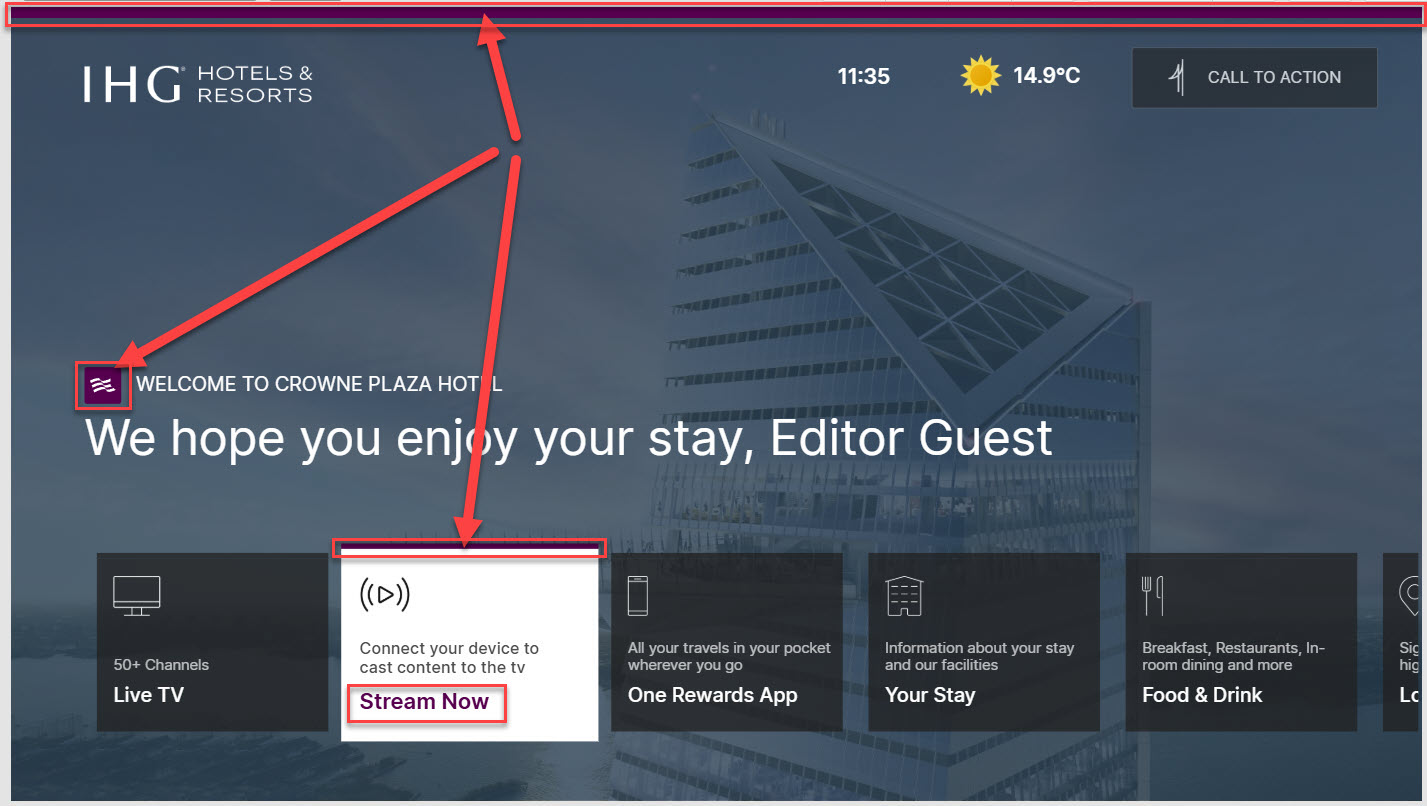
This theme is delivered with a Crowne Plaza staybrand logo/colour as as example (Purple colour seen e.g. in the top of all screens).
-
For any other IHG Staybrand the LOGO and the COLOUR must be updated in the Central Style Sheet (CSS)
-
For correct hex colour codes for each Staybrand, please consult the colour-chart in the "Media->System" folder.
-
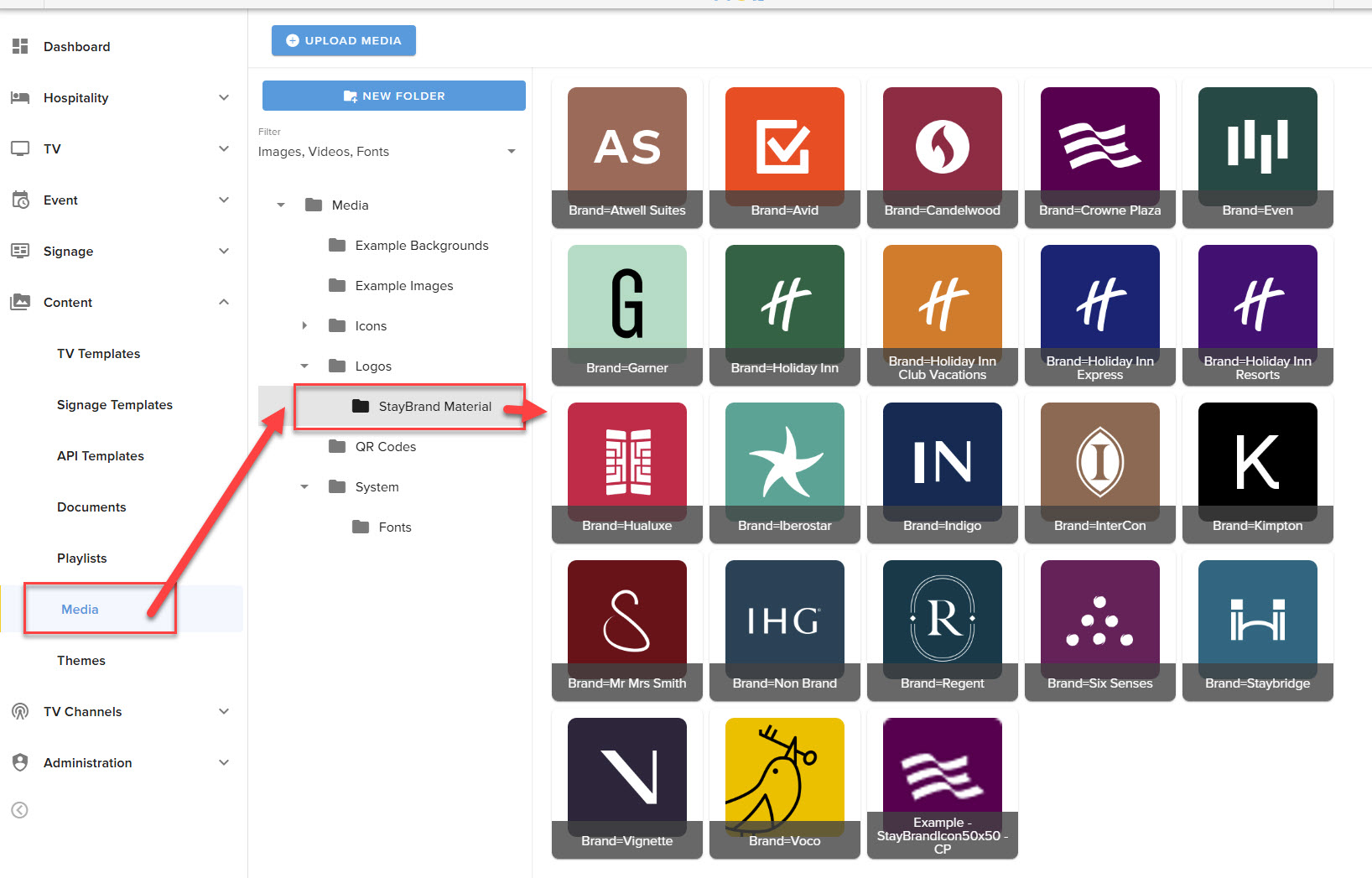
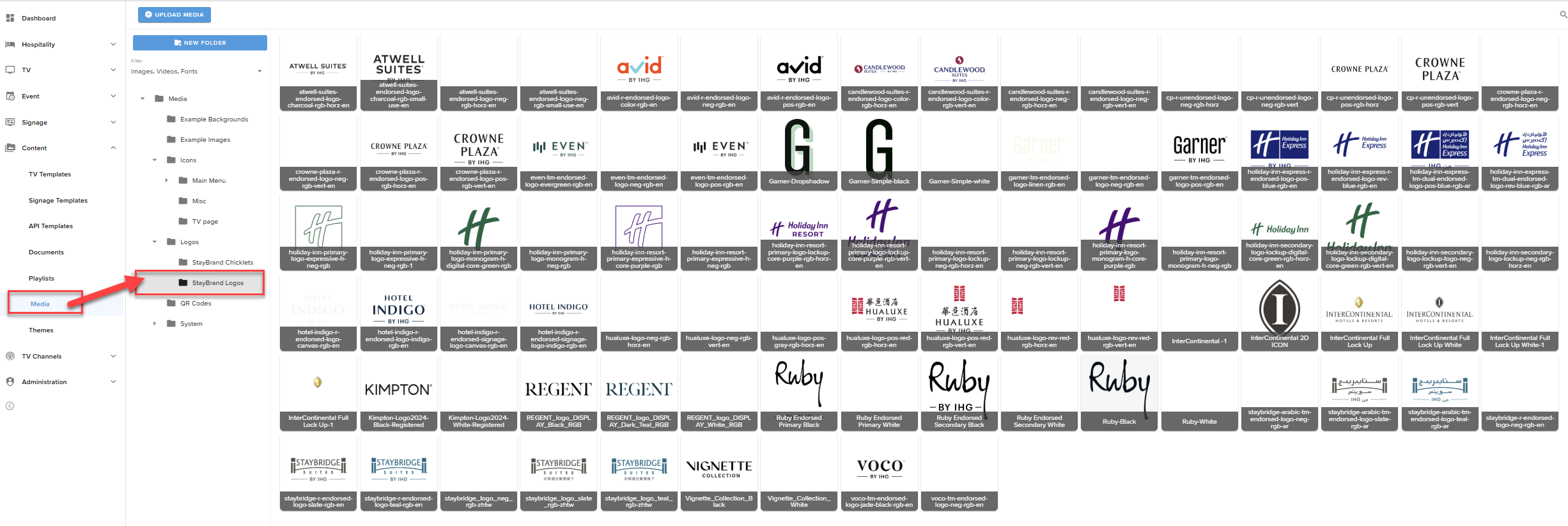
For correct "Chicklet" logo visual for each Staybrand, please update the image in the Global CSS to point to the relevant image in "Media->Logos->StayBrand Material"
TINTS & GRADIENTS:
- Note the wide use of blue tints and overlay gradients, these are on IHG main brand and should remain blue regardless of Staybrand.
- The main background image and the "infopage" images will be tinted automatically.
ICONS:
- Icons used on the main page menu are approved by IHG for temporary use, but you may exchange/replace/add icons of a similar style to suit your deployment.
- Submenus and infopages use Google Material Icons, these can also be adapted, replaced or exchanged as needed.
FURTHER INFORMATION:
Please consult the further general documentation on customizing themes available here on the portal, or contact Uniguest Support for tech support.
¶ Import the Theme
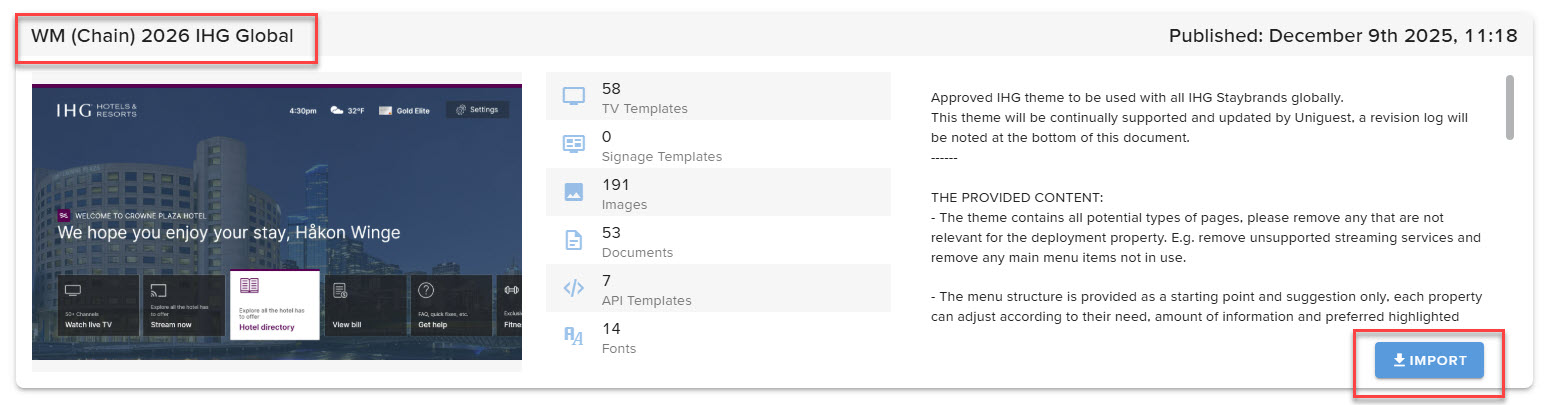
Start by importing the "WM (Chain) - IHG Global (2026)" theme to your site, if this is not available to import then please contact Uniguest Support.
¶ Change the background
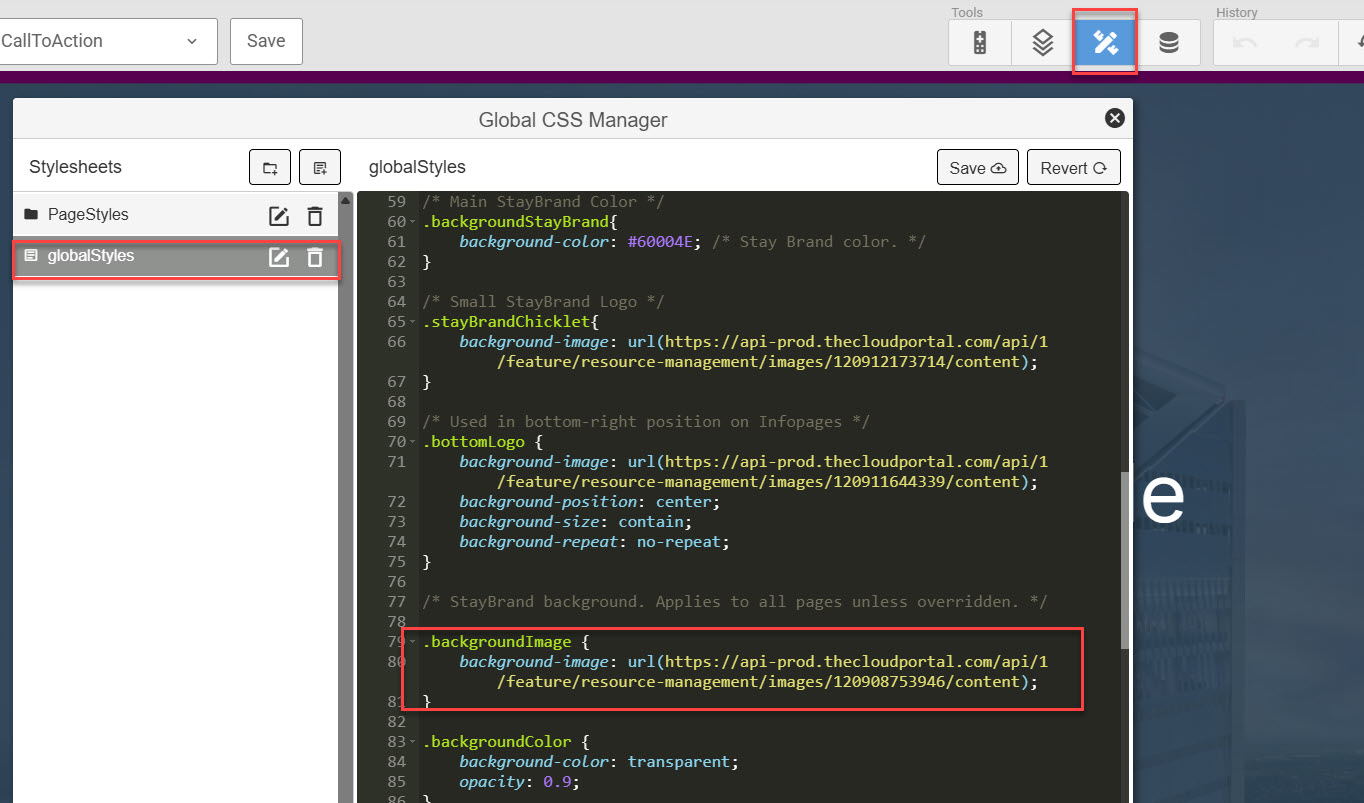
The theme is set up to display one background image across all pages. Some pages will display it in full, some will have it partially hidden behind overlays and tints.
Follow general IHG guidelines to select an appropriate JPG image in the dimensions 1920x1080 and implement it via a single switch the the global CSS for it to change on all current and future pages.
¶ Customize the main menu
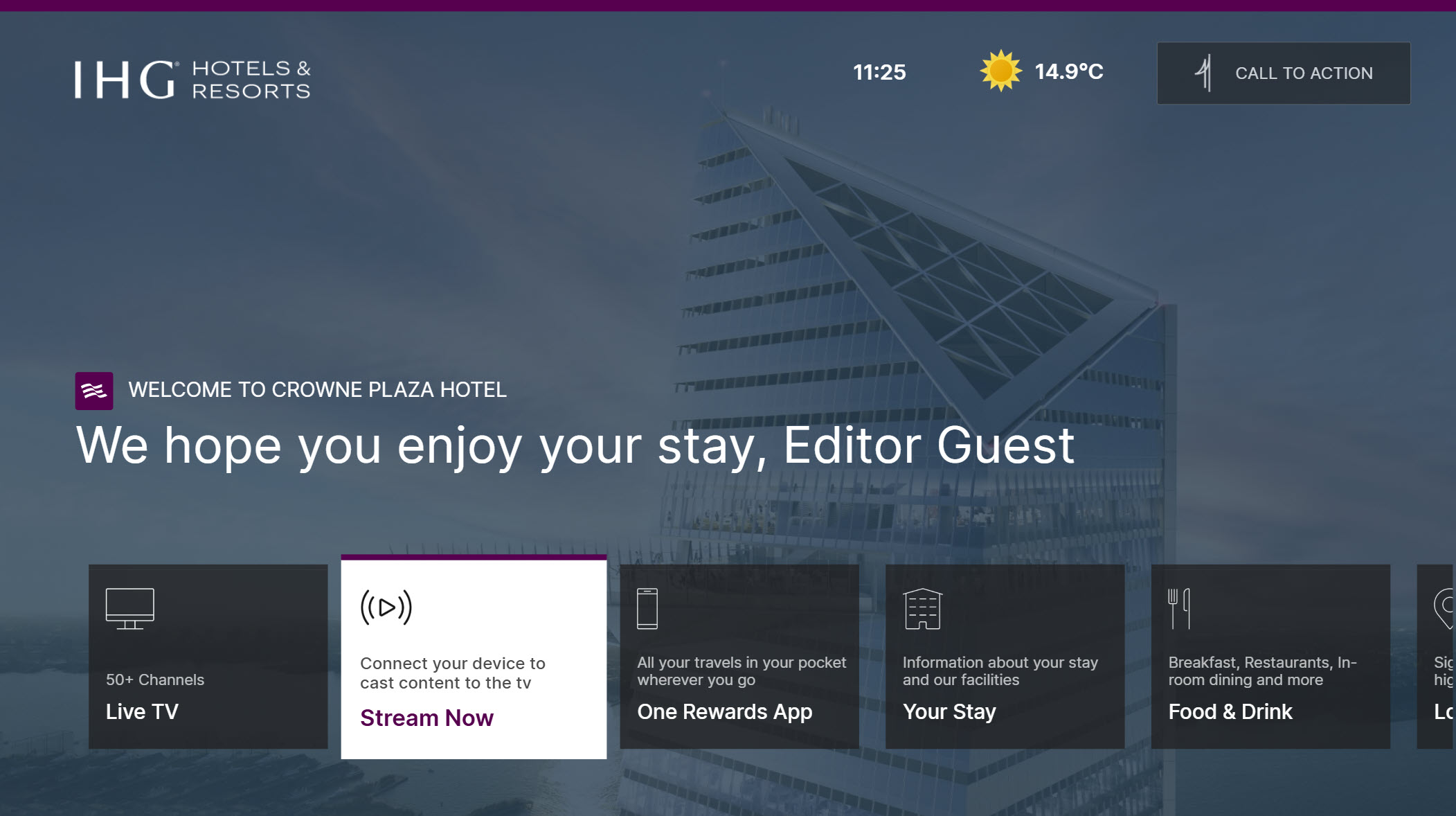
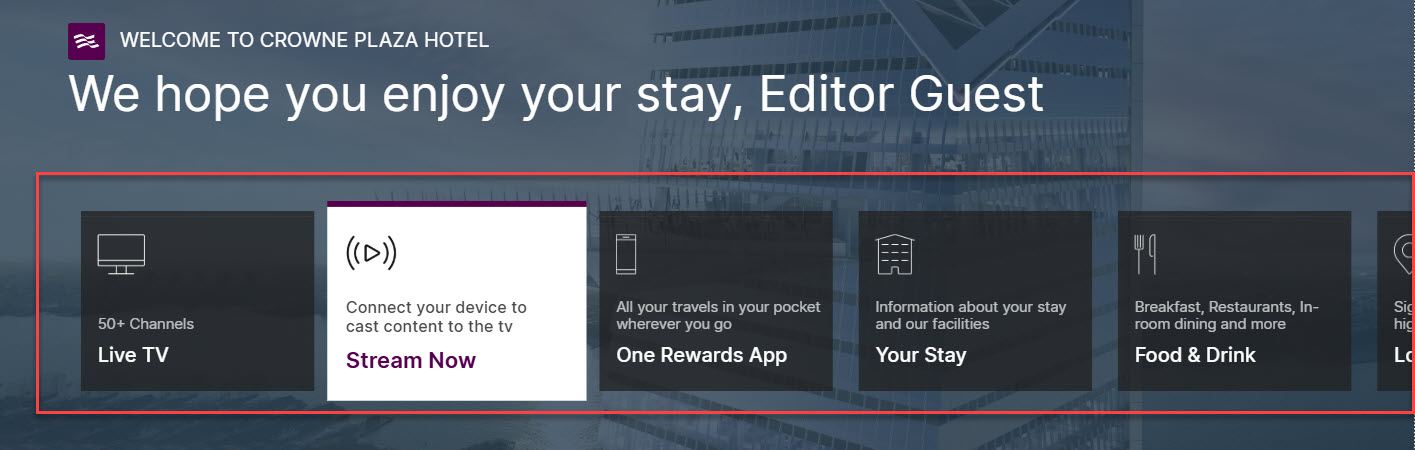
The main menu is the central page that the user always starts from and returns to when navigating the menu structure. The page layout is mandatory, you cannot add or remove elements without approval from IHG central corporate. You can add/remove menu elements and change the color/logo to the relevant IHG brand.
¶ Mandatory IHG logo
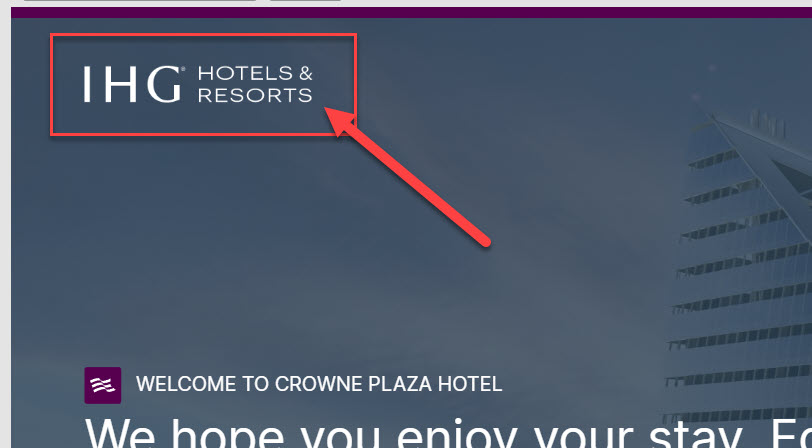
The main IHG Logo in the top left area of the screen is mandatory and fixed in place, this should not be altered.
¶ Staybrand "Chicklet" logo
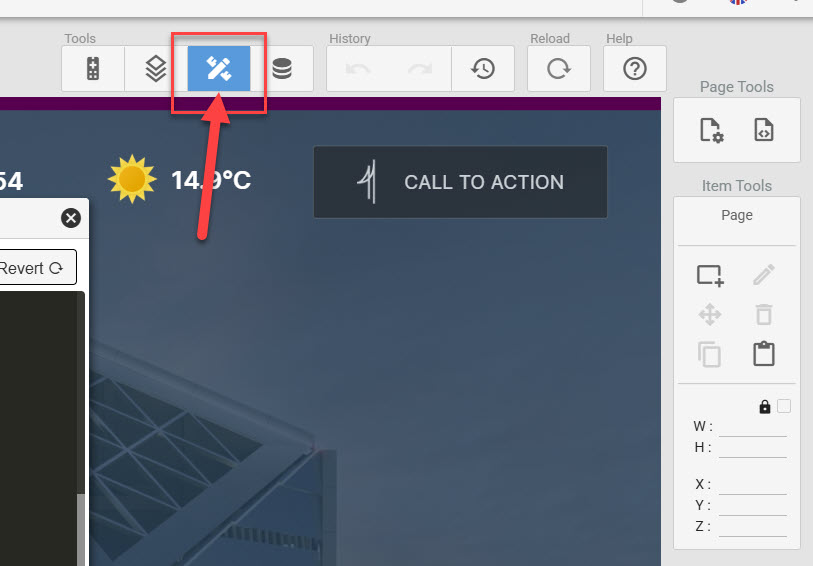
The small "Chicklet" Staybrand logo on the main page is defined within a global stylesheet. Open the global stylesheet editor by clicking the button in the upper right corner:
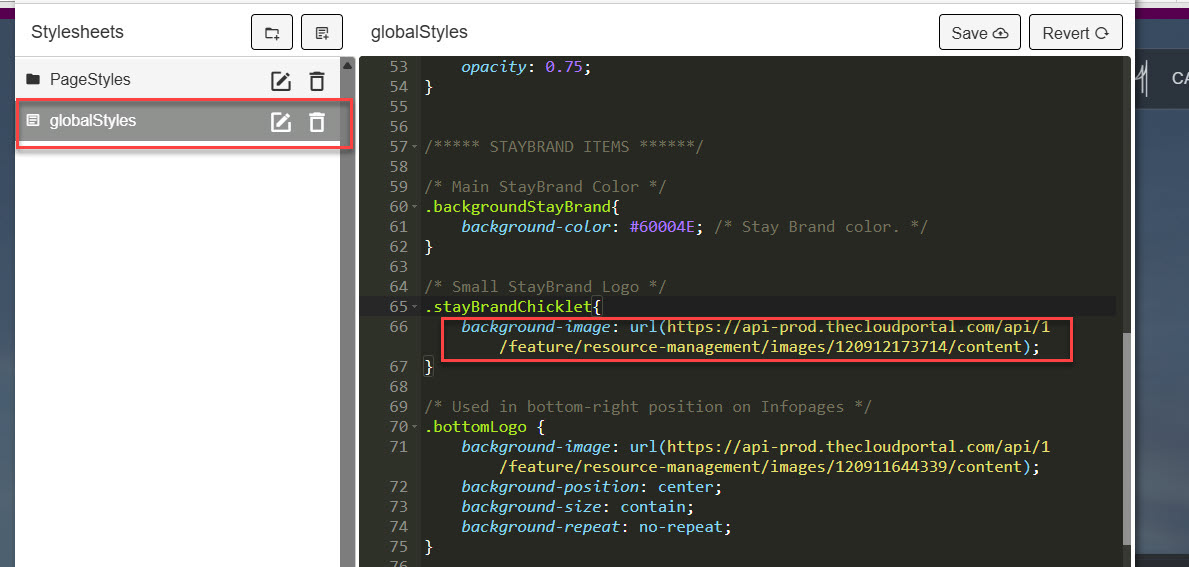
Within the "Global" stylesheet you find the "stayBrandChicklet" class. Insert the link to the new logo. The image library can be opened by Alt+i or a right-click.
All Staybrand chicklet images in SVG format is provided in the media folder, just link to the relevant one for you.
¶ Staybrand logo
The Staybrand logo is used in the bottom right of information pages and it is defined in a global stylesheet, similar to the "Chicklet" asset.
Within the "Global" stylesheet you find the "bottomLogo" class. Insert the link to the new logo, replacing the default "blank" logo currently displayed. The image library can be opened by Alt+i or a right-click.
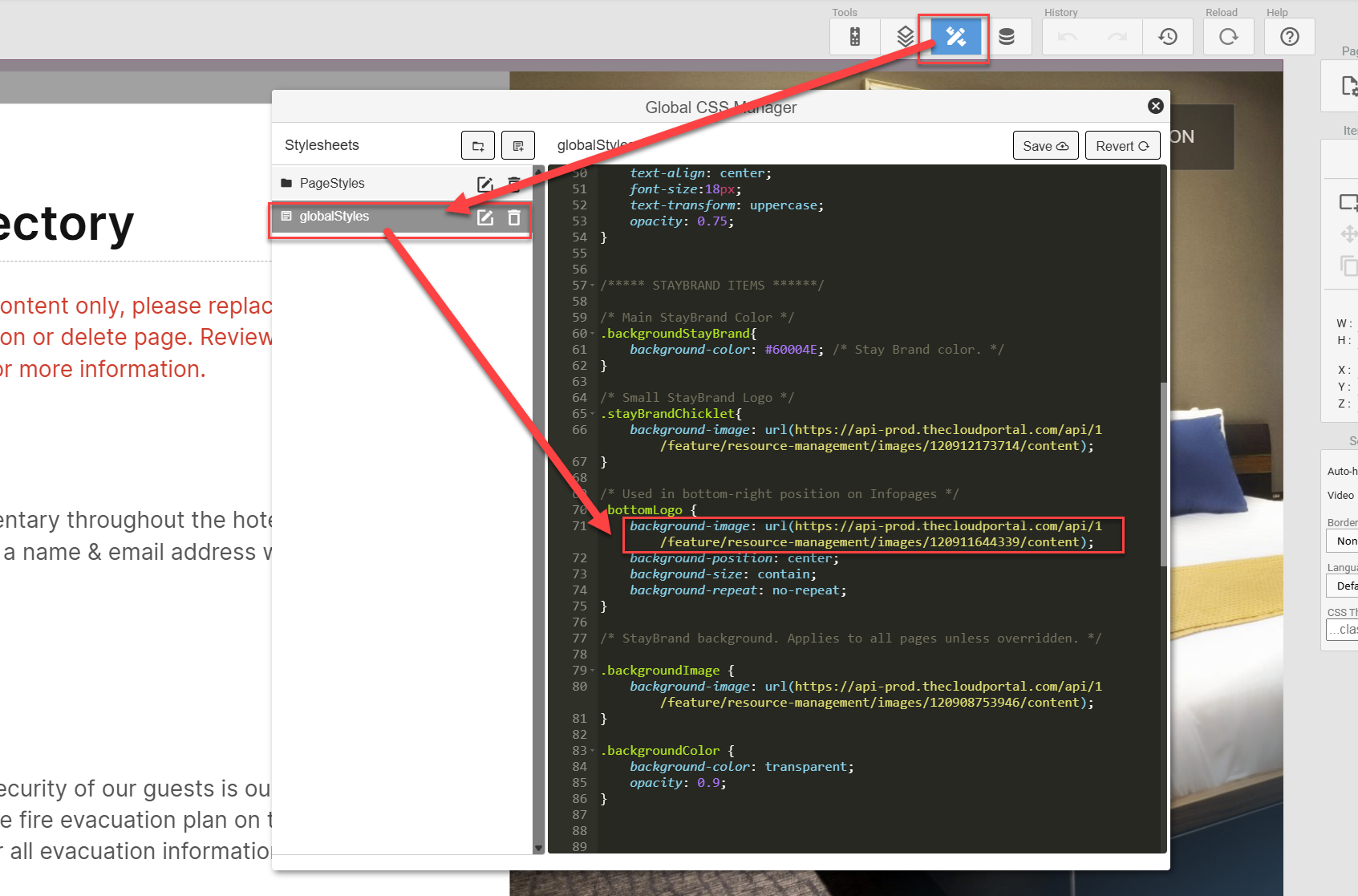
A wide variety of Staybrand logo images in SVG format is provided in the media folder, just link to the relevant one for you or contact your IHG representative for material in e.g. Chinese, Arabic or special versions.
Please note that the default use should always be the "WHITE" versions of the logo provided, but you may divert from this if your image selection makes it needed for visibility.
¶ Staybrand colour accents
With the chicklet logo correct for your StayBrand, next is the colour accents used in several places across the site. First identify the correct HEX/RGB color for you to use in the below overview:
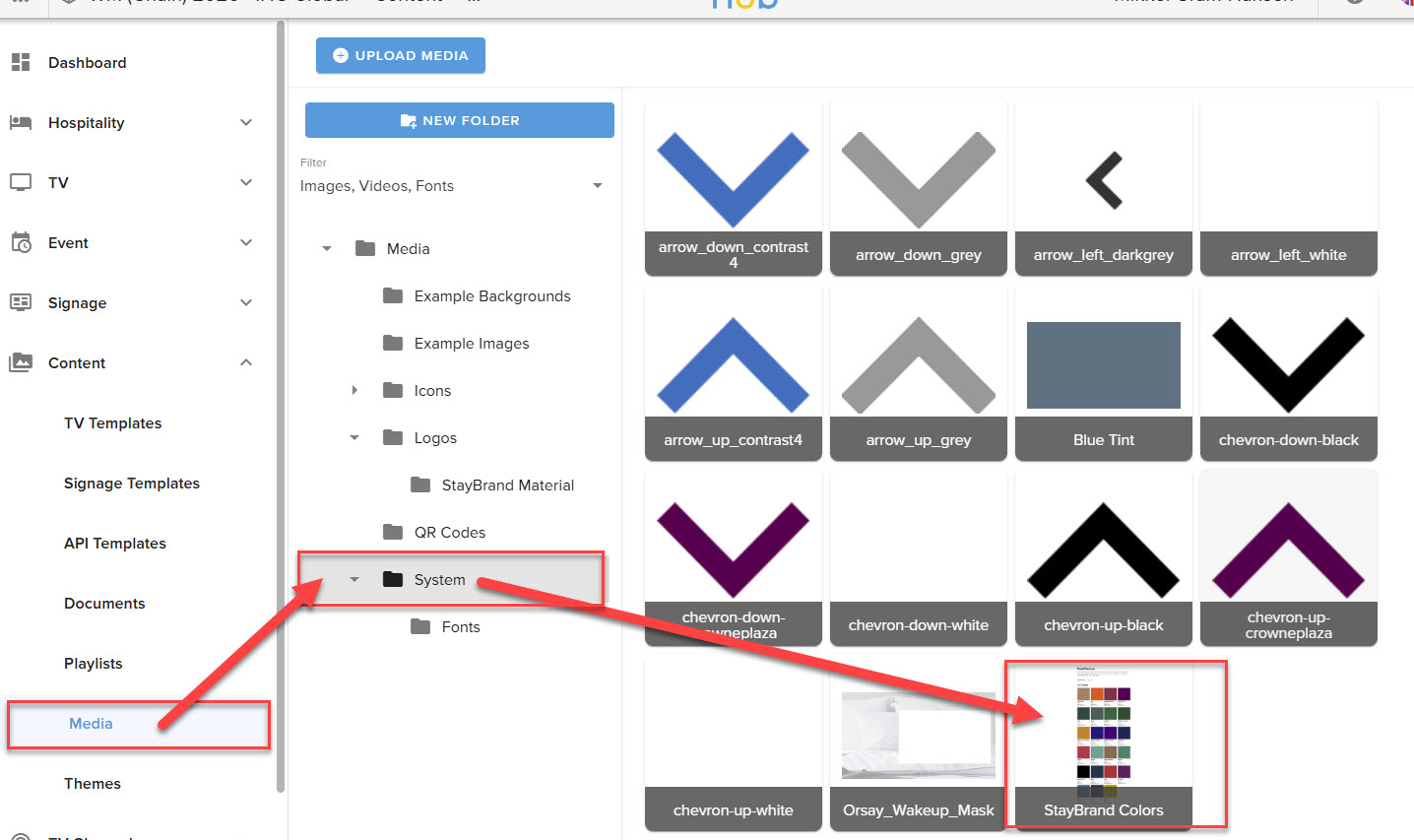
Then replace the placeholder StayBrand Colour value (#60004E) in the "Global" and the "mainMenuStyles" css files
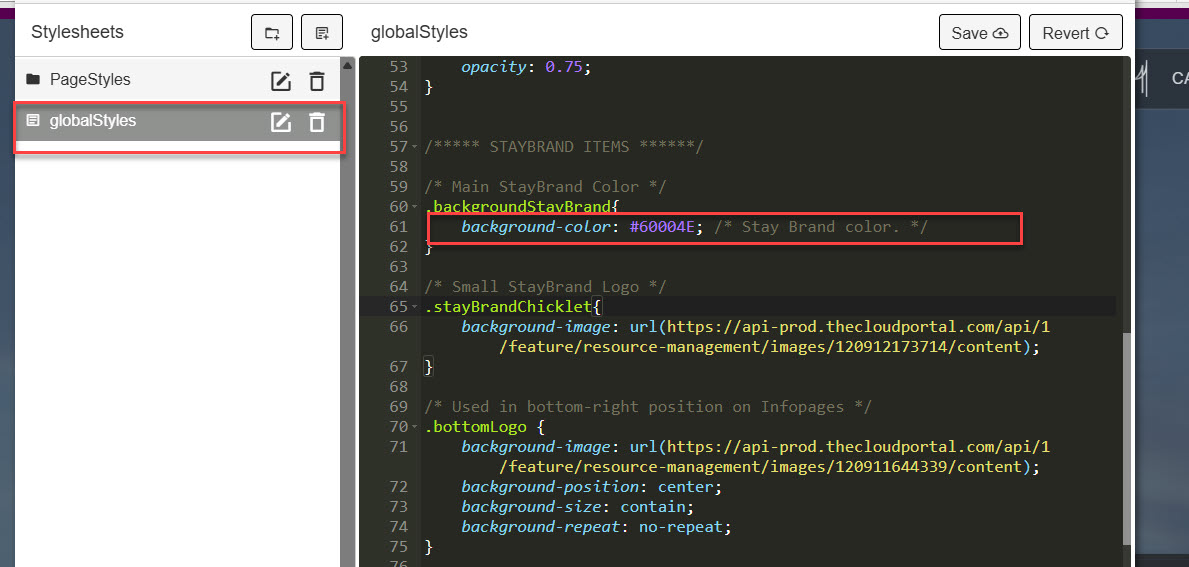
and
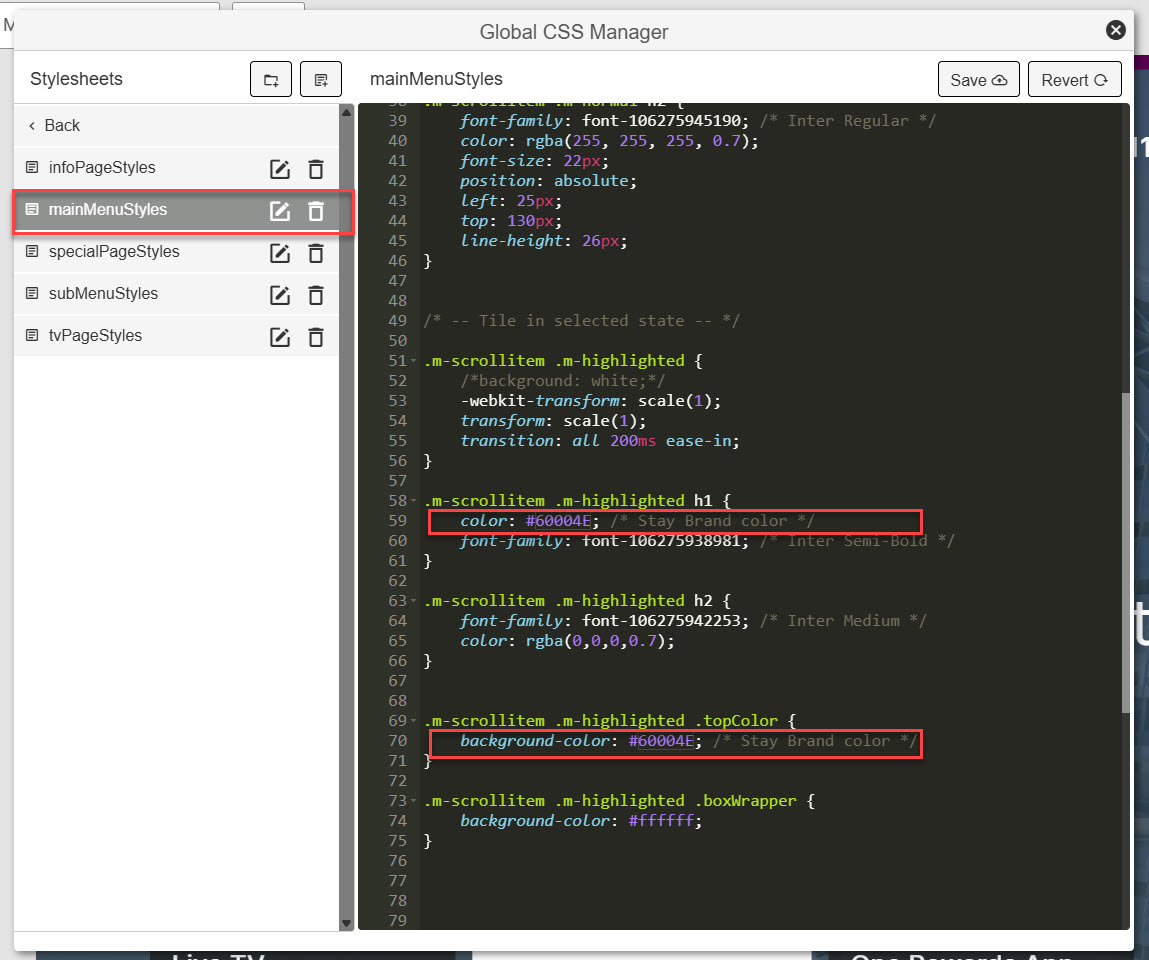
Your main page should now have correct Chicklet and color accents relevant to your IHG StayBrand
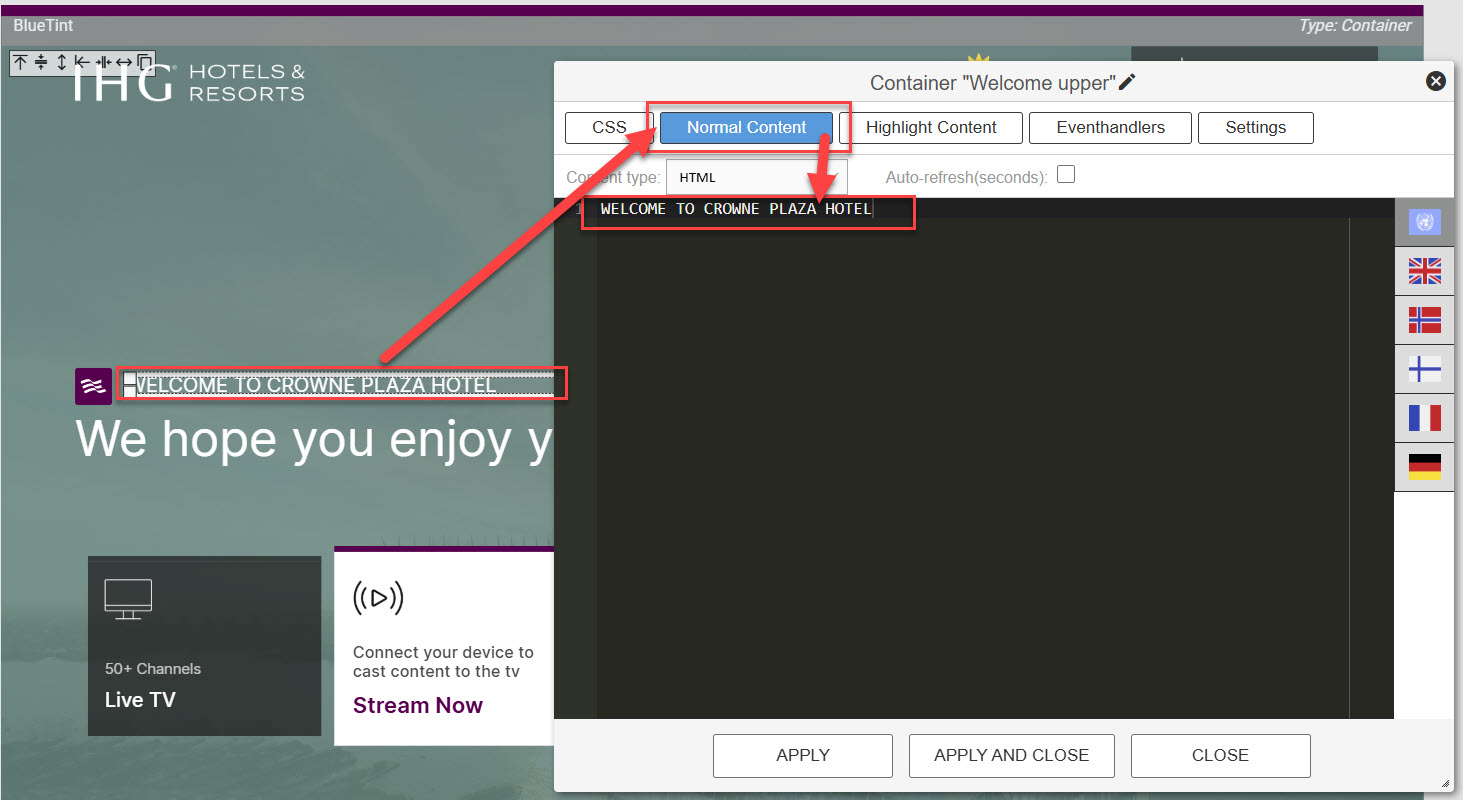
Finally doubleclick the welcome textline, select the content tab and replace the name of the StayBrand
¶ Add, modify or remove Menu items
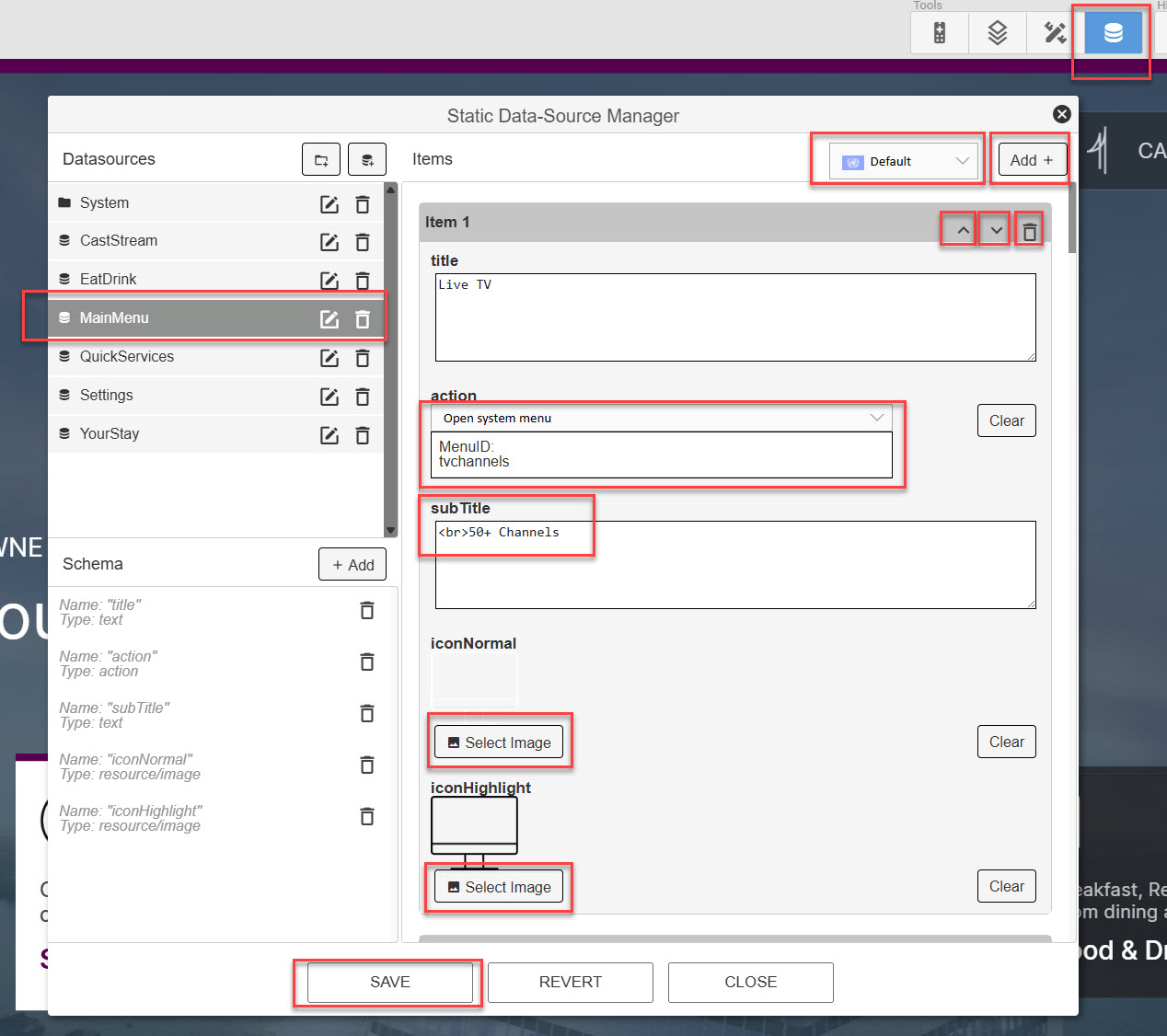
The Menu items are administrated through a Data source. To access this, click the Data source icon in the upper right corner and select the Data source named "Main Menu", see below.
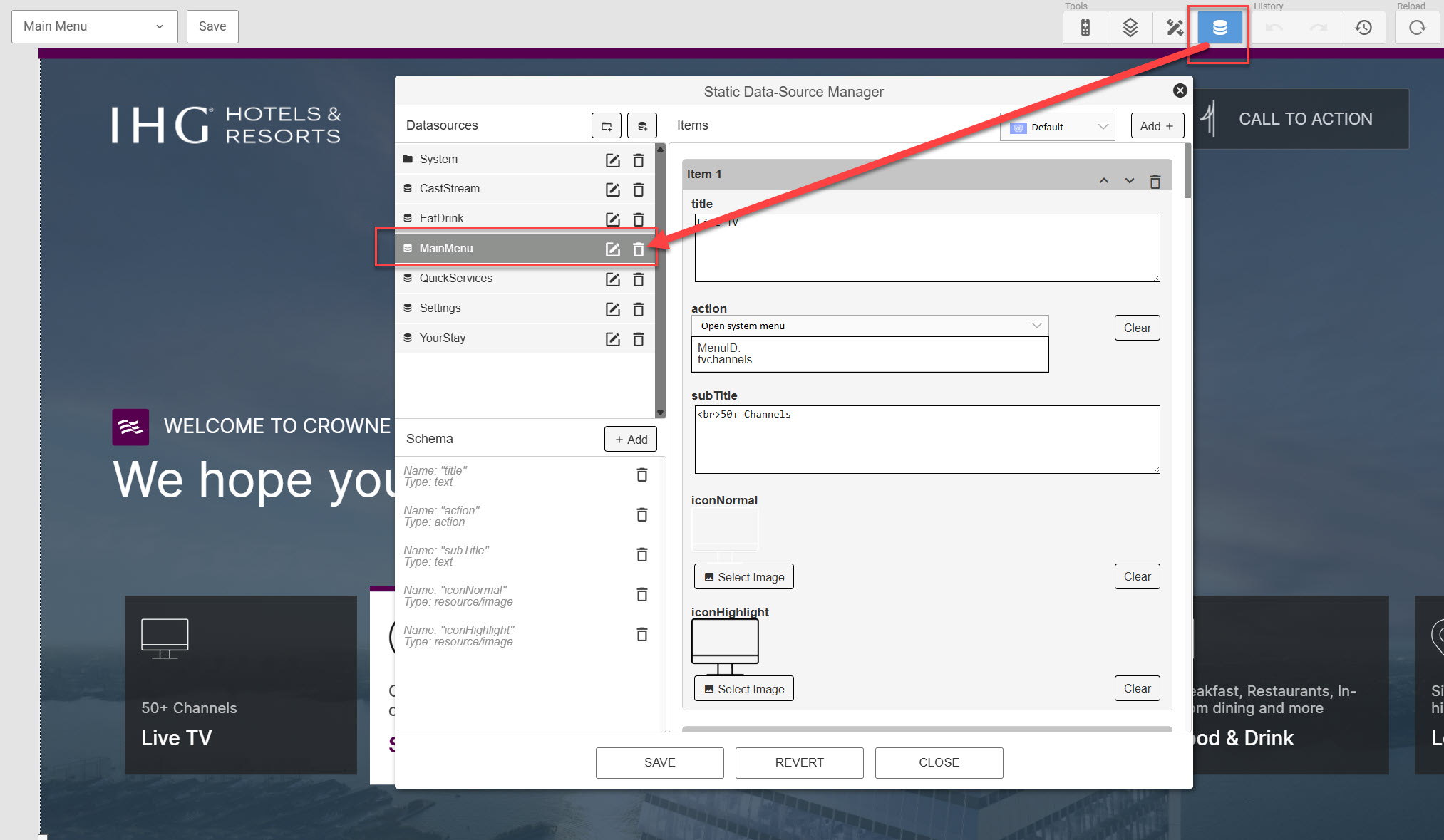
Inside the Data source you can add a new menu item, you can modify existing ones and remove items you do not need. You can also change the order of the Menu items. Furthermore, language translations can be added using the flag dropdown at the top.
- Note that the "iconNormal" entry is not blank, but the image asset is white colour so is invisible on the background in the data source manager.
¶ Customize the Welcome page
The welcome page is shown only the very first time a new guest turns on the TV, after that the screen is bypassed and the guest will go direct to the main screen when powering on the TV.
¶ Change/translate the welcome text
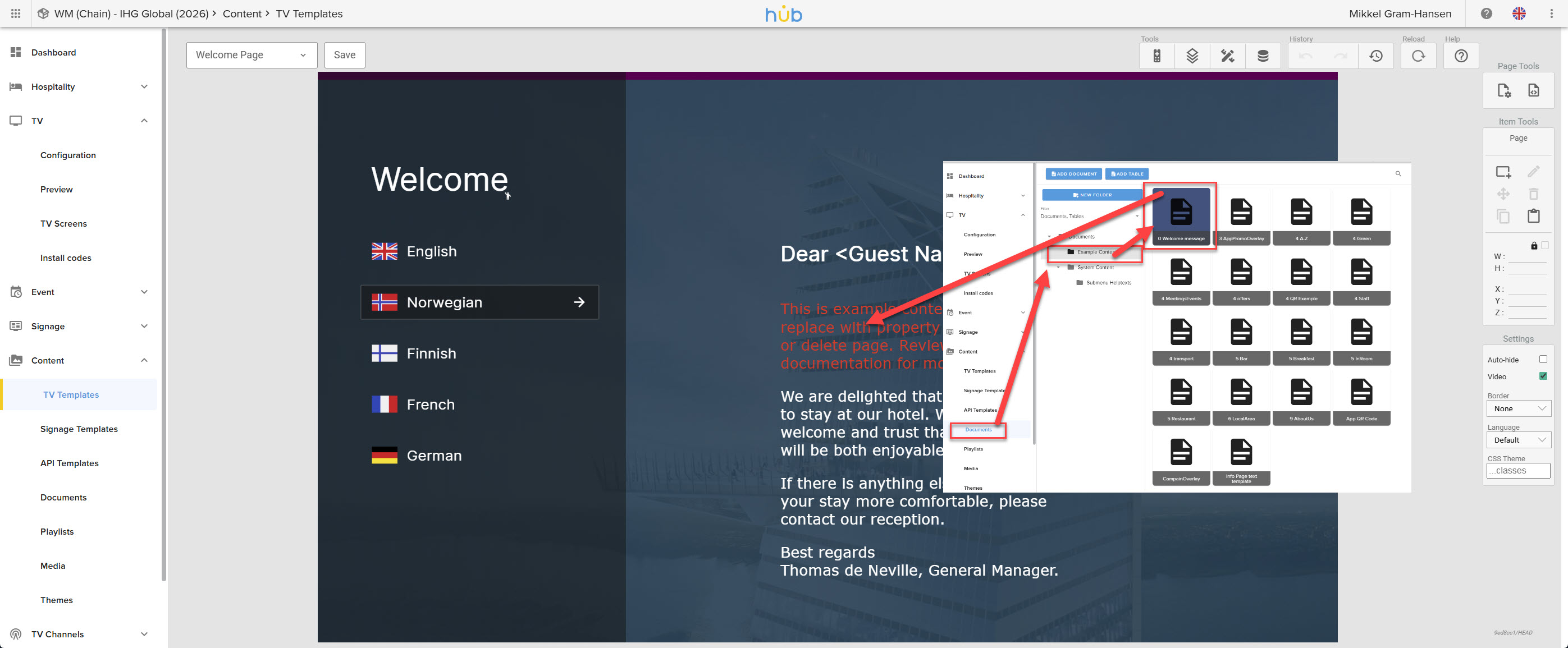
To change the welcome text, open the "0 Welcome Message" document as indicated below and change the text to your preference. Language versions are created similar to all other language divided content.
The flags/languages to the left are autogenerated by the system to always display the languages you have activated.
¶ Customize the Power On page
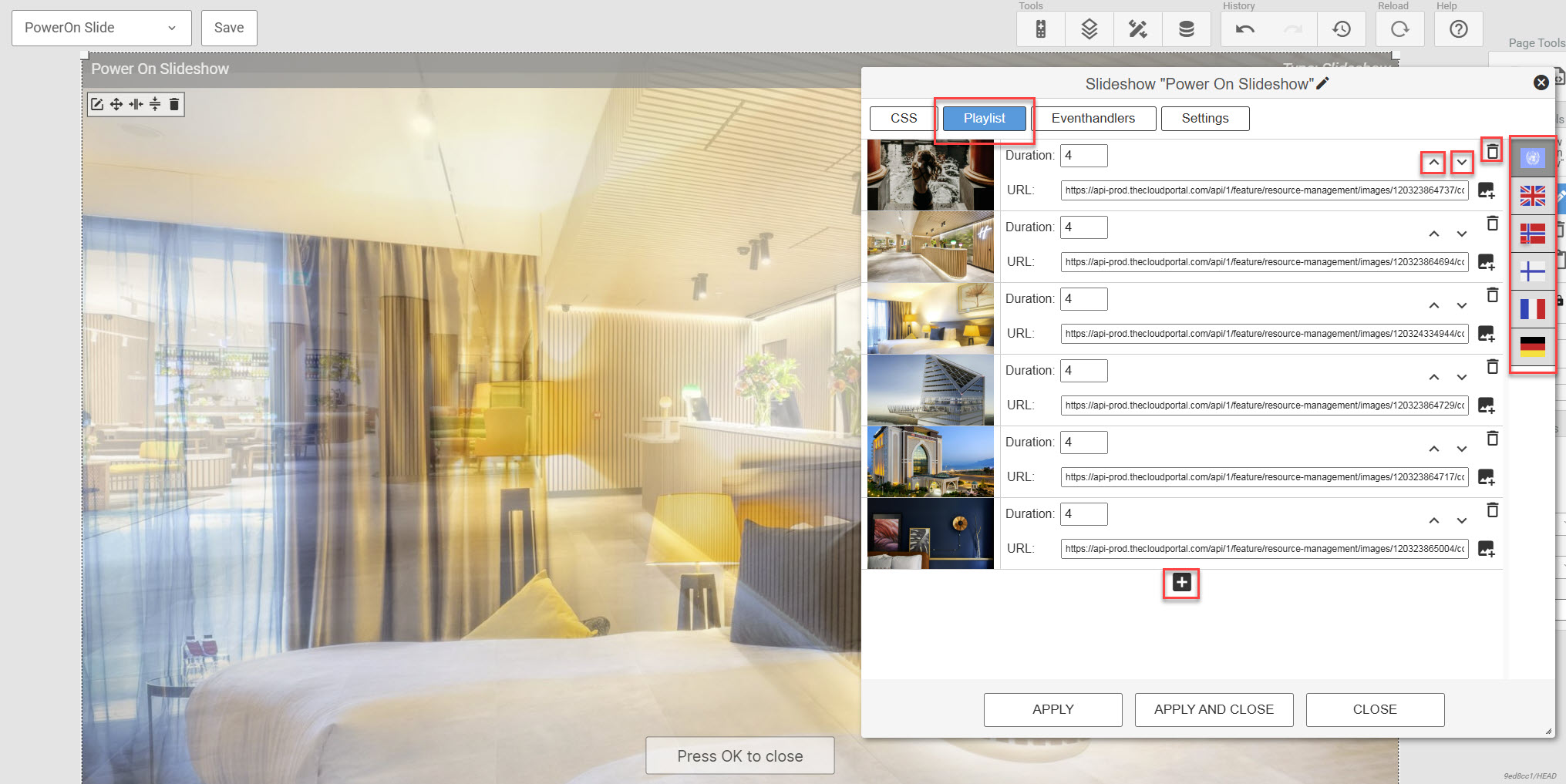
To modify the slideshow displayed when the TV is turned on, open the "Power On" page, doubleclick the main element and slect the "playlist" tab. There you can add, replace or remove images uploaded to the media gallery. As with most other elements you can differentiate between content for different languages through the UI flags in the right side.
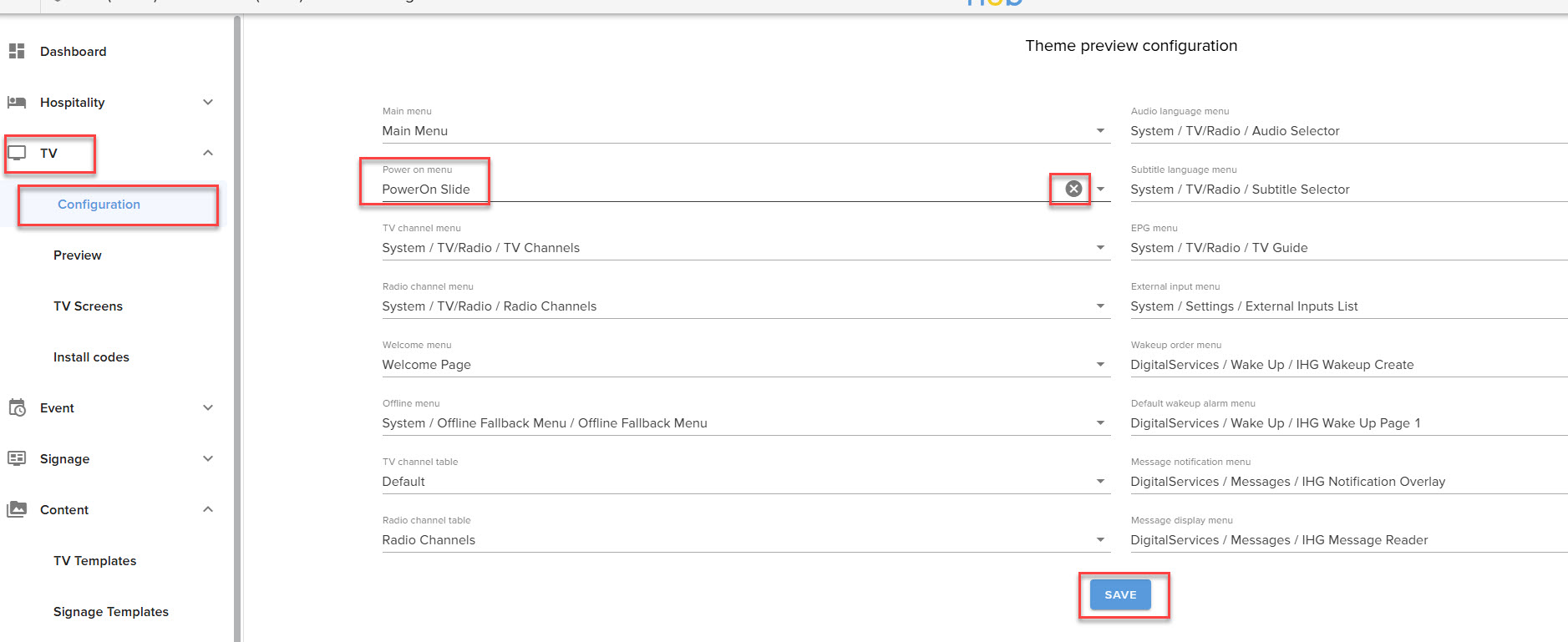
To entirely remove the Power On slideshow, go to TV -> Configuration and remove the selected "Power On" to leave it blank.
¶ Customize the Ambiance Gallery page
This is done similar to the Power On page documented above. The "Ambiance Gallery" page has a blue tint overlay, but all customization options are the same.
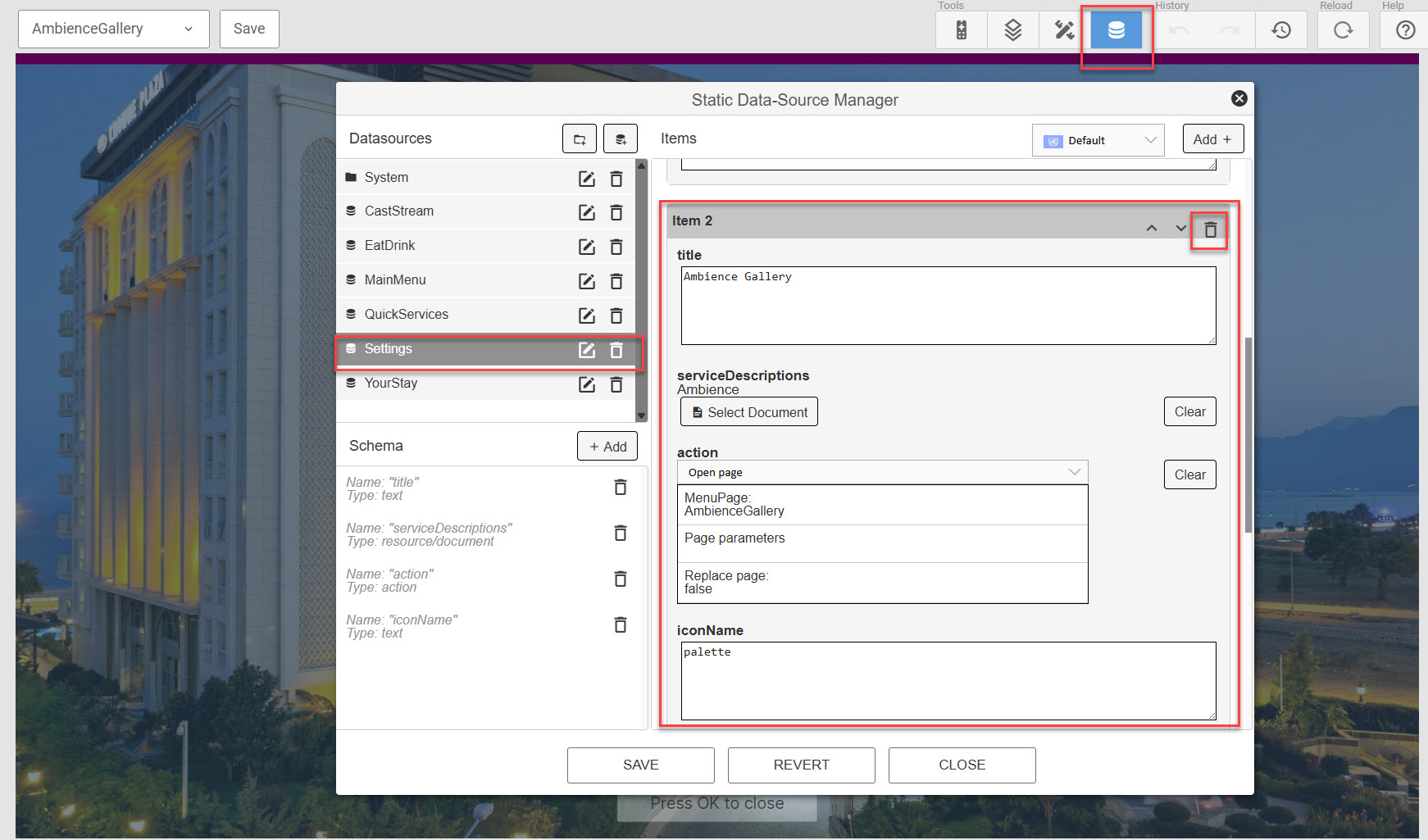
To remove the Ambieence Gallery, open the "Settings" data source and delete the relevant entry.
¶ Customize a Sub Menu
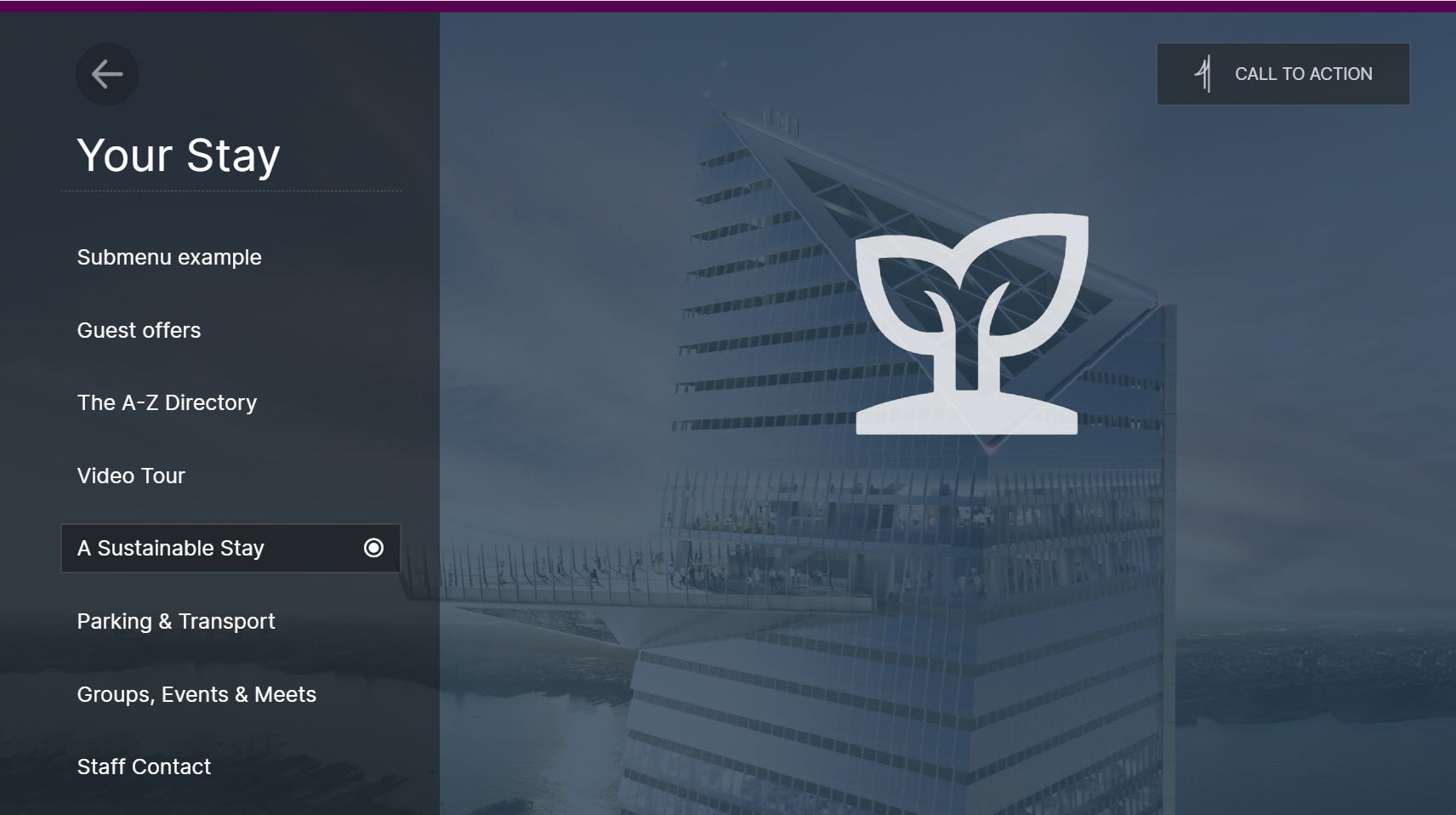
Submenus in this theme are set up with a headline, a data source containing the submenu items, an icon and a call to action. This format is mandatory and uniform across the site and if you create new submenus these should follow the same form.
¶ Change the headline
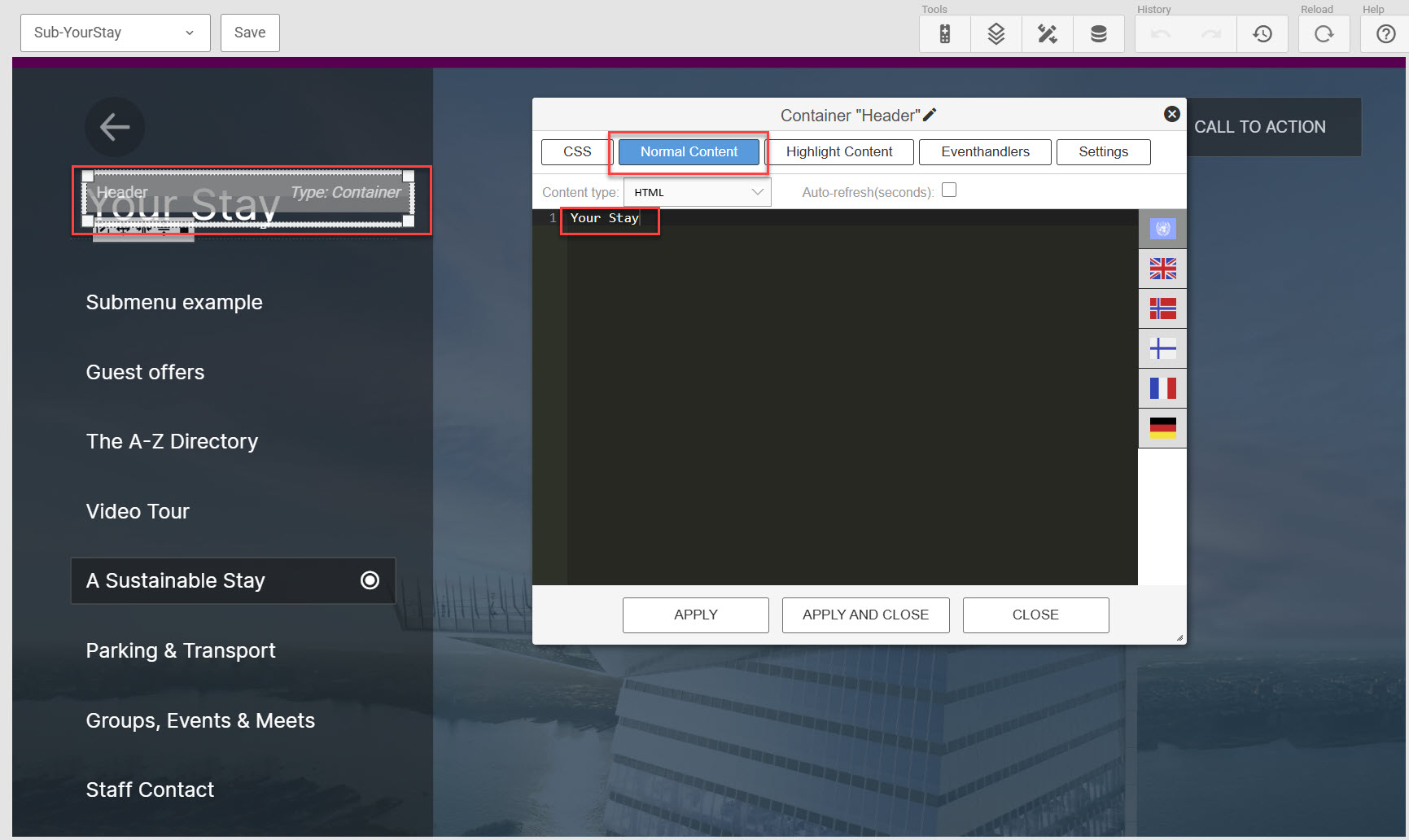
The sub menu heading is modified by opening the container that contains the text. Choose "Normal Content" and change the text. Translations can be added my using the flag icons on the right. Please note the limited space available for the headline and keep any text quite short in all languages.
¶ Change the elements in the Sub Menu List (and their icon)
The tems in the sub menu List is managed through a data source. First locate the correct data source by opening the list item and check the "Settings" tab. This is also where you select a different data source if needed.
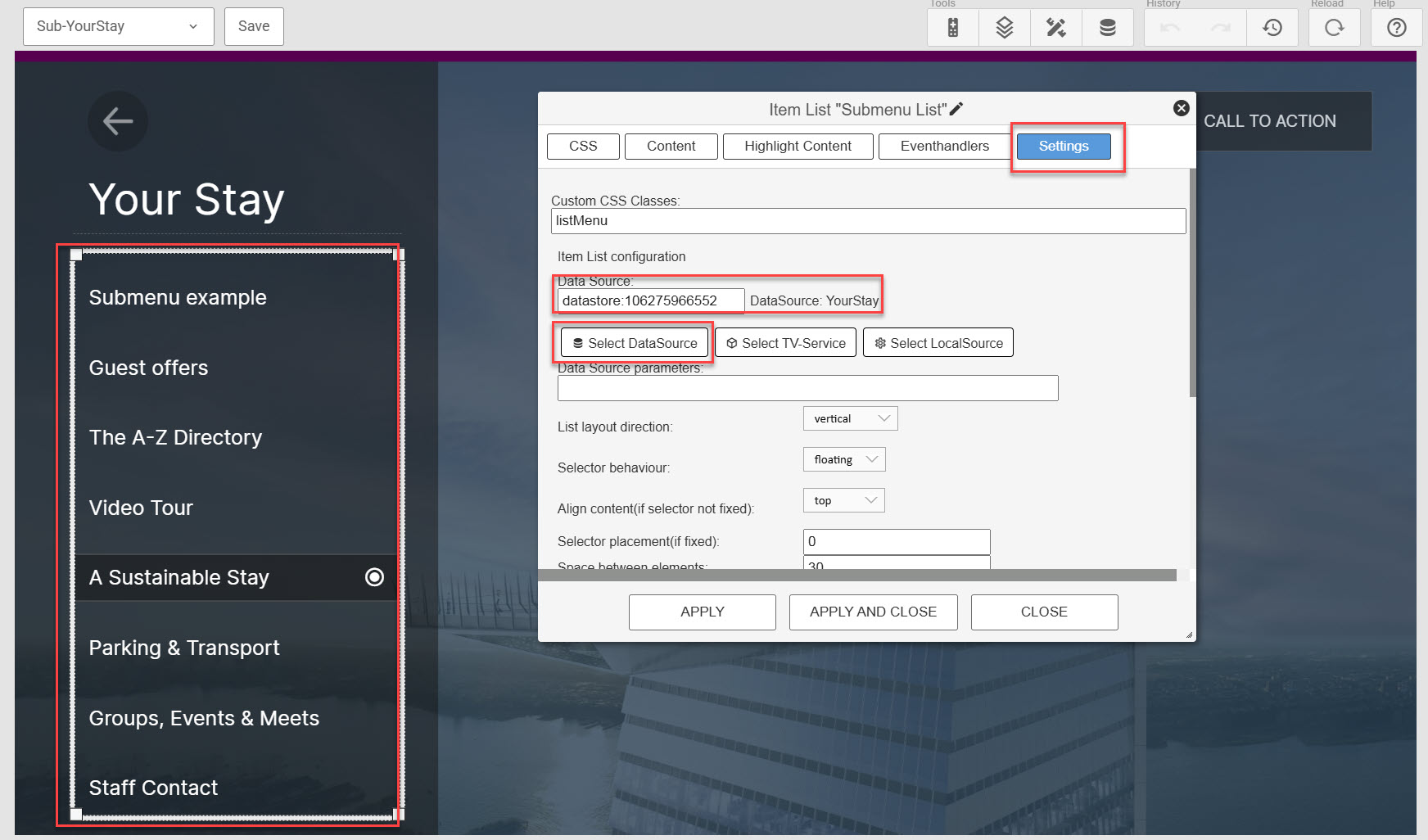
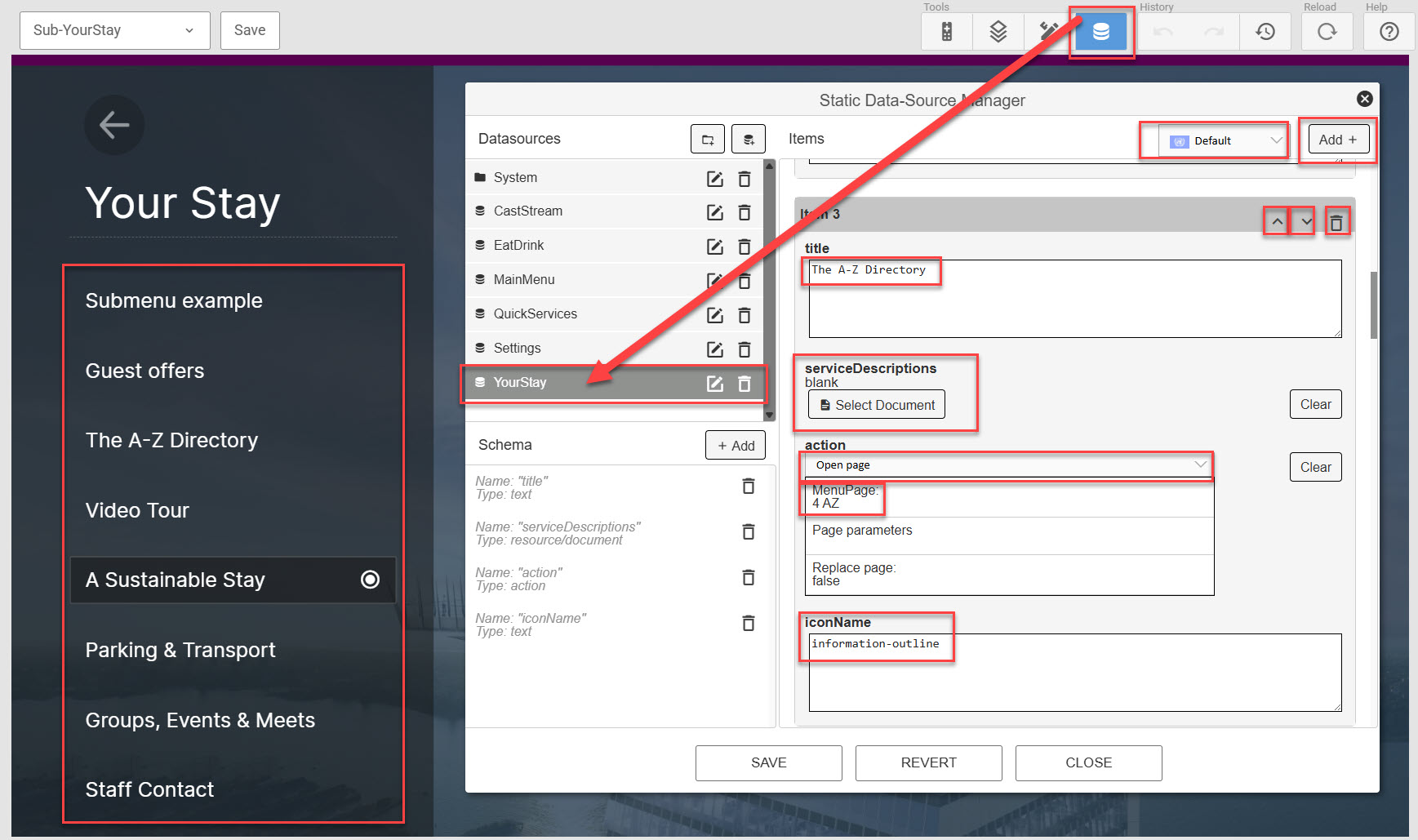
Then open the data source by clicking the data source icon in the upper right corner, see image below. Within the data source you can add new items, remove items and alter the order of them. Translations are also available through the flag dropdown on the top.page: https://pictogrammers.com/library/mdi/ just copy/paste in the relevant icon name and it will display.
Note the iconName parameter set to "information-outline" in the screenshot below. This is the icon visible with each submenu item, and the "information-outline" refers to a Google Material Icon. You can insert any icon from this page: https://pictogrammers.com/library/mdi/ just copy/paste in the relevant icon name and it will display.
¶ Customize or remove the "Call to Action"
All pages have a generic "Call to action" button in the upper right corner. These must be customized to your needs or removed individually on all pages. Doubleclick element to customize, or delete. See the relevant chapter in this documentation for more information.

¶ Create a new Sub Menu
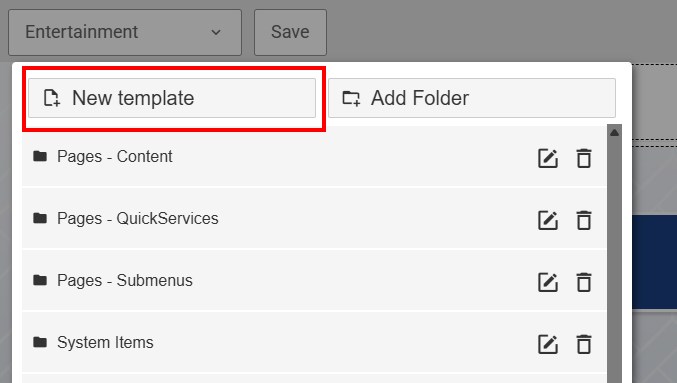
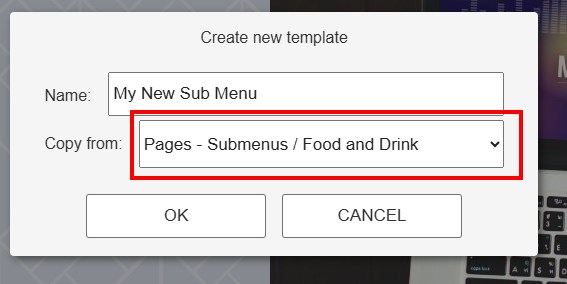
If you want to create a new sub menu, simply create a new one as a copy of an already existing one:
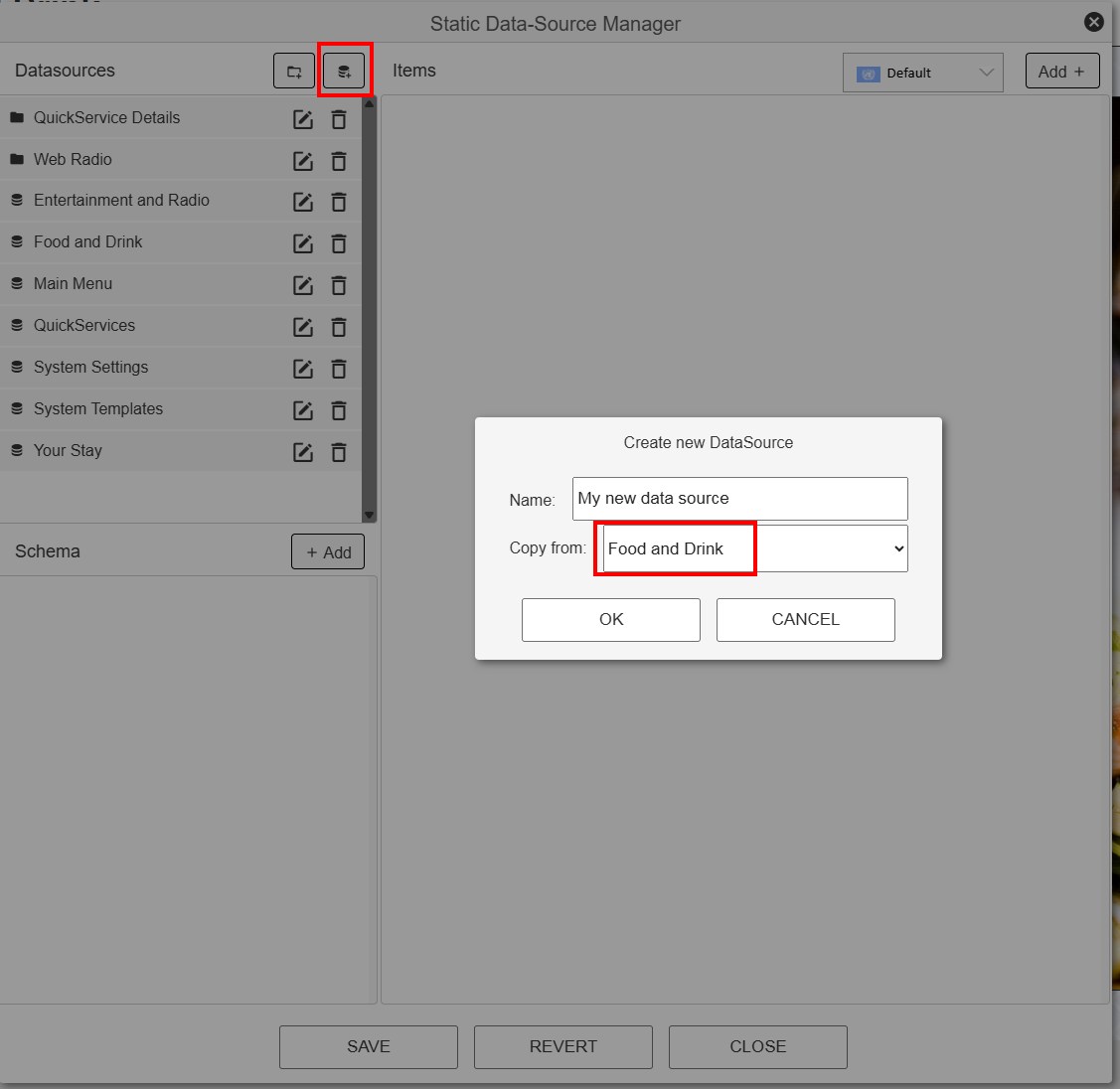
Now you need to create a new data source to fill the sub menu with your menu items. Within the data source editor, you can create a new datasource as a copy of an existing one. This ensures it contains the correct fields needed for the sub menu:
Now you can link the new data source to your new submenu page:
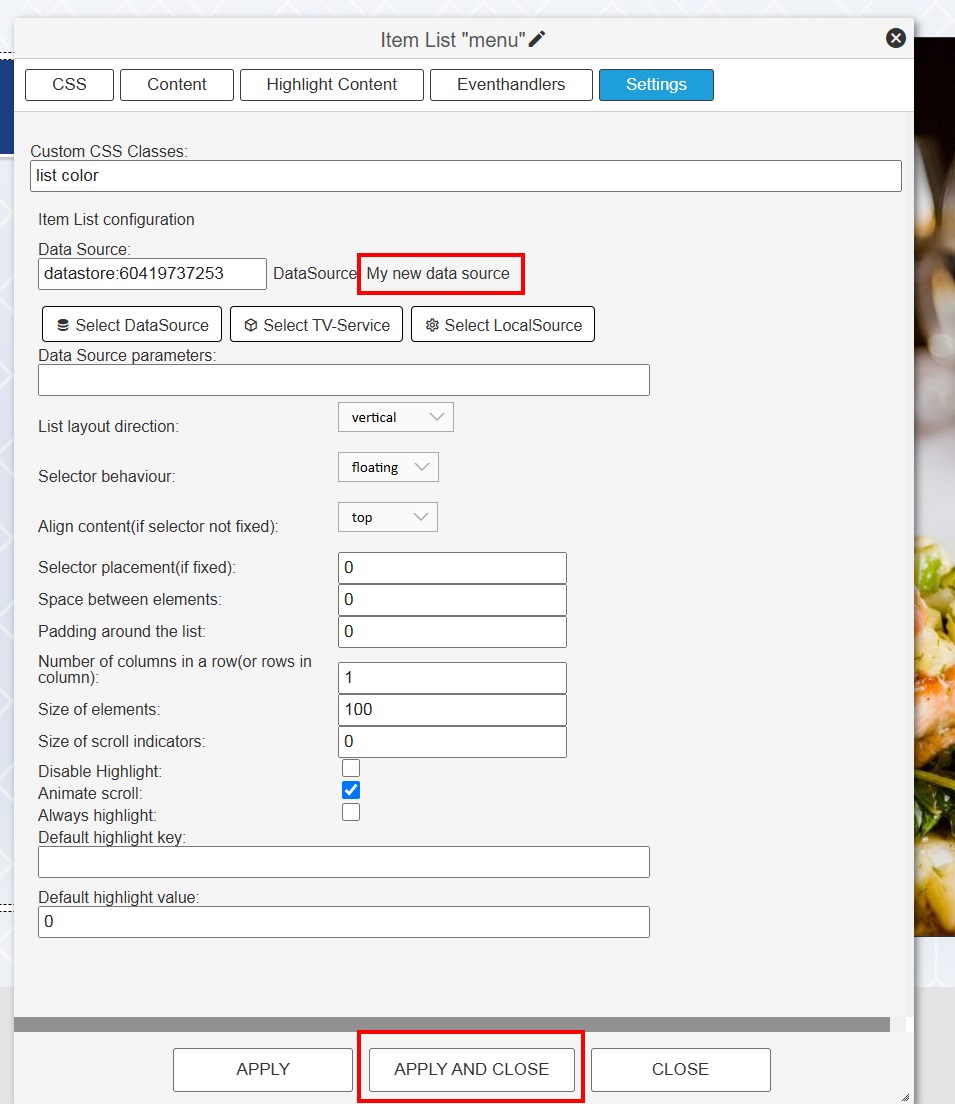
Then map and configure the new page as described in the Main Menu and Sub Menu configuration sections above.
¶ Customize an existing Info Page
Information pages in this theme are set up with a headline, a content document, an image and a call to action button. This format is mandatory and uniform across the site and if you create new info pages these should follow the same form. The "App Promotion" page is an exception, this will be documented seperately later below.
The provided information pages are placeholders only, you must replace all content with what is relevant for your deployment. Add new, remove, change or adapt.
Note there is a mandatory blue tinted overlay in the bottom right corner of the main right side image. This should not be removed, it is to offset the white StayBrand logo positioned on top when these become available.
For information on how to work with images and documents, please consult the general documentation on working with Hub Themes.
¶ Change the Header
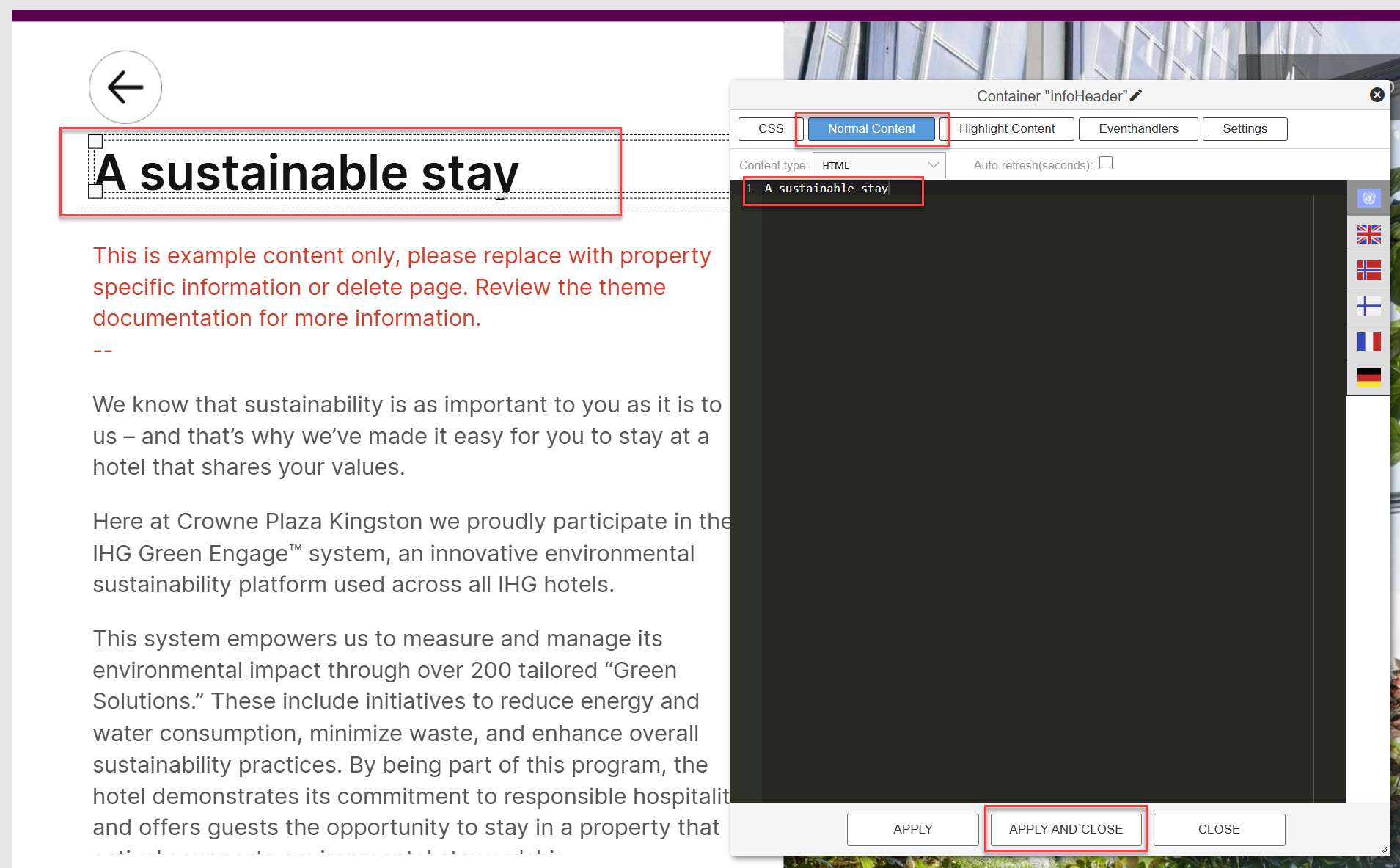
To adjust the header of the info page, double click the header container and adjust the title under "Normal Content". Use the flags to add translations to other languages.
¶ Change the Image
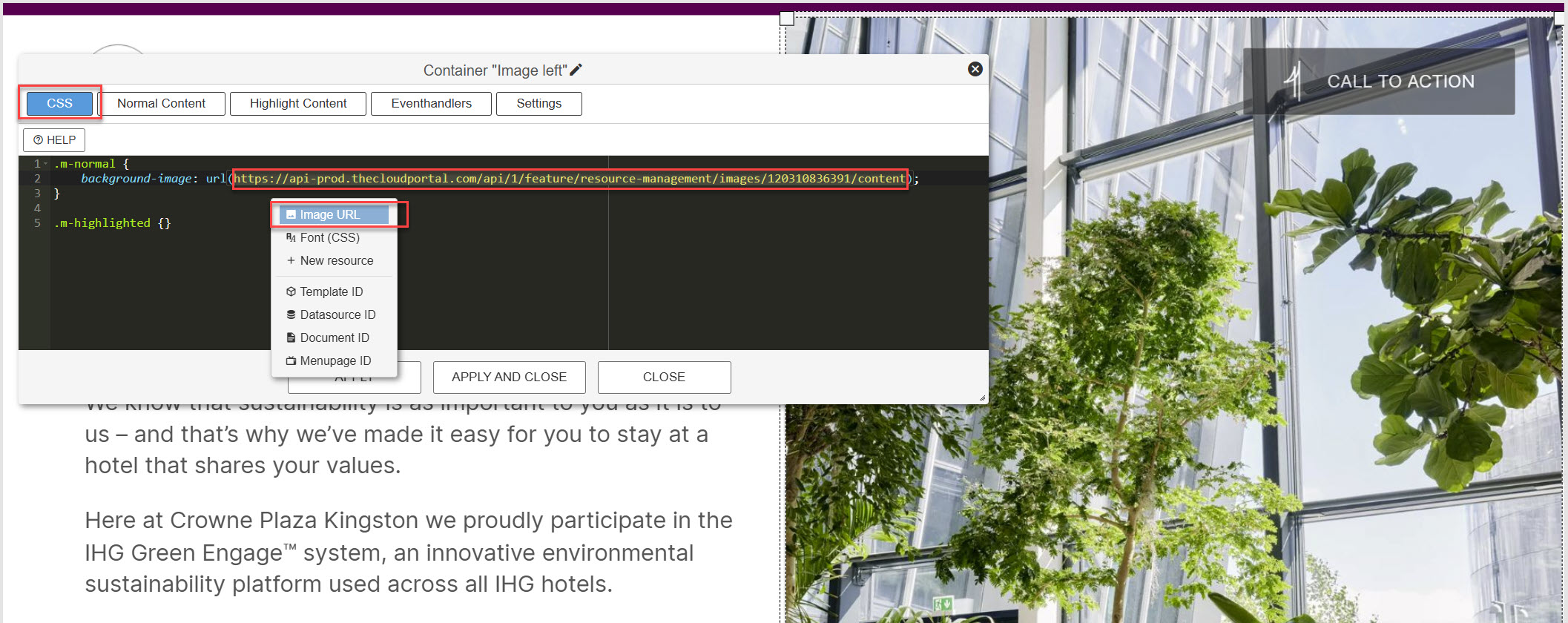
To change the right side page image, double click the container containing the image. Within the CSS section, change the url for the "background-image". This is done by deleting the old one and inserting a new one. Right-click within the url() and select the new image.
¶ Change the bottom StayBrand logo
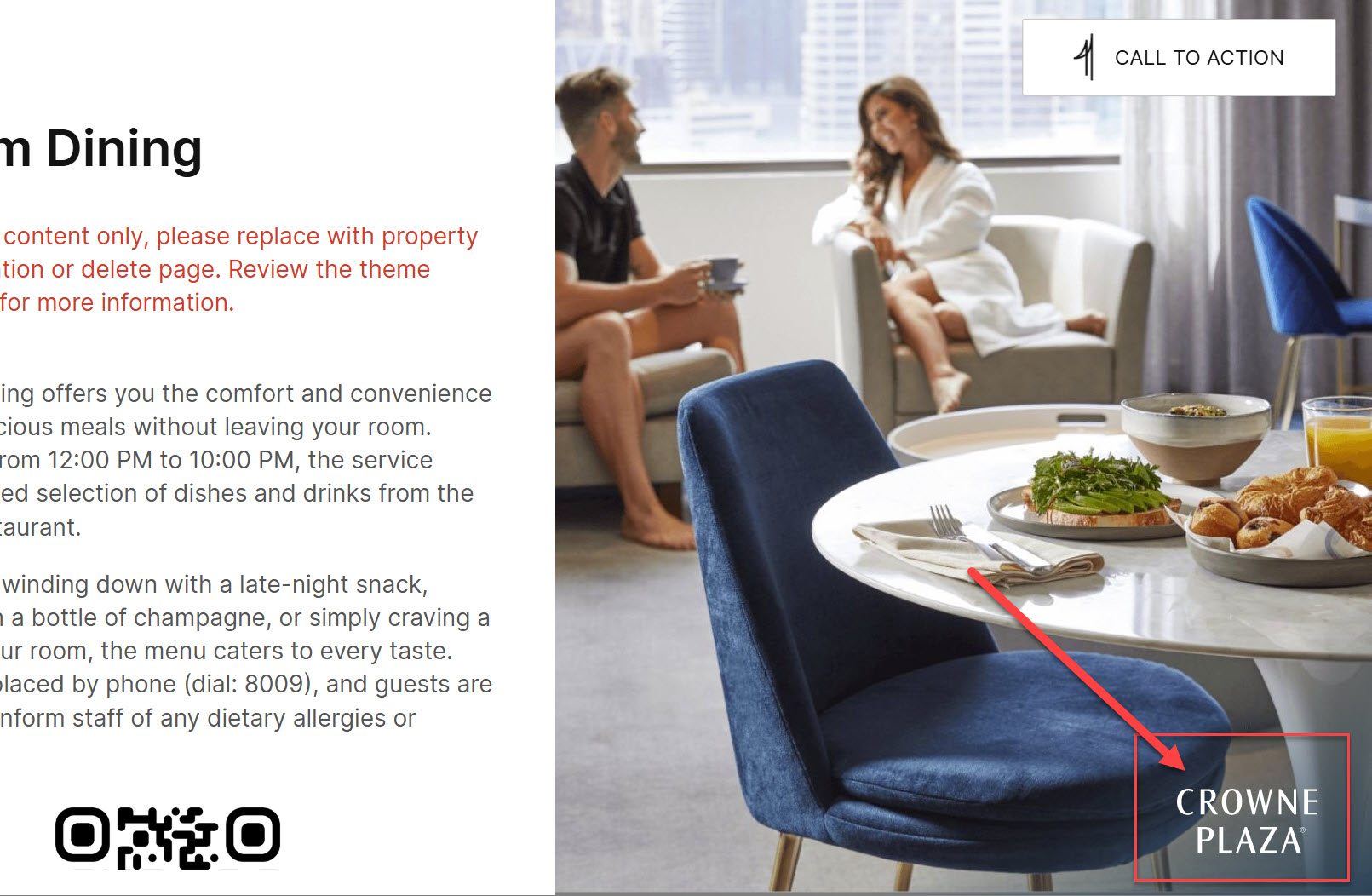
The theme display a blank logo asset in this container by default, but is ready for you to add the relevant Staybrand logo to all info page images with one simple change of the CSS.You should not remove or modify the container on each page, only point to the logo asset via the "global" css sheet. It will then display on all relevant pages in the site.

¶ The main information content area
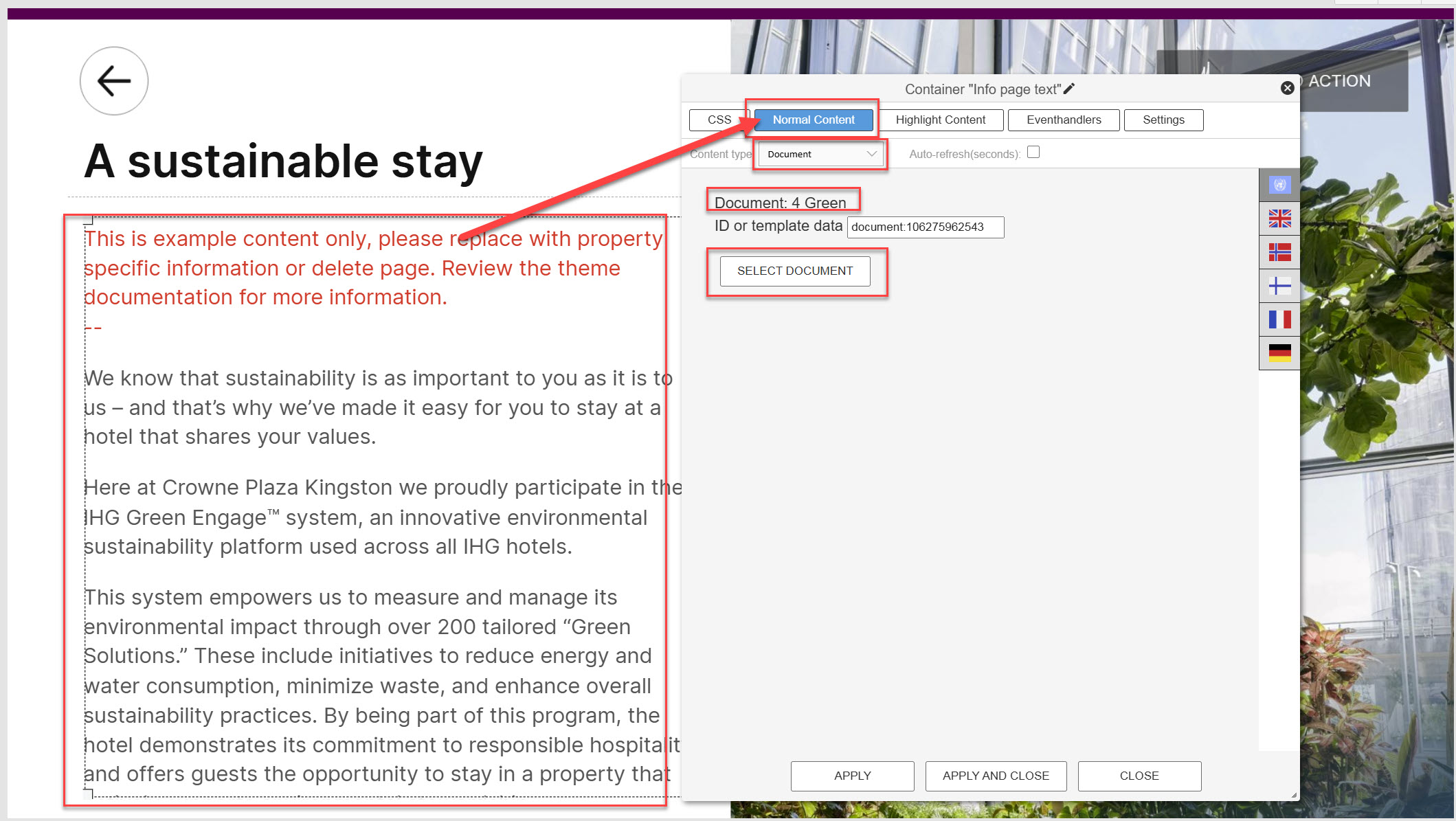
This area is sourced from a document, doubleclick and select "normal content" for information on the document and/or to change the source.
¶ Change the info text
To edit existing text, open the relevant document and use the standard editor to write your text. Note that you should not format the text, this is done automatically by the system when displaying on page.
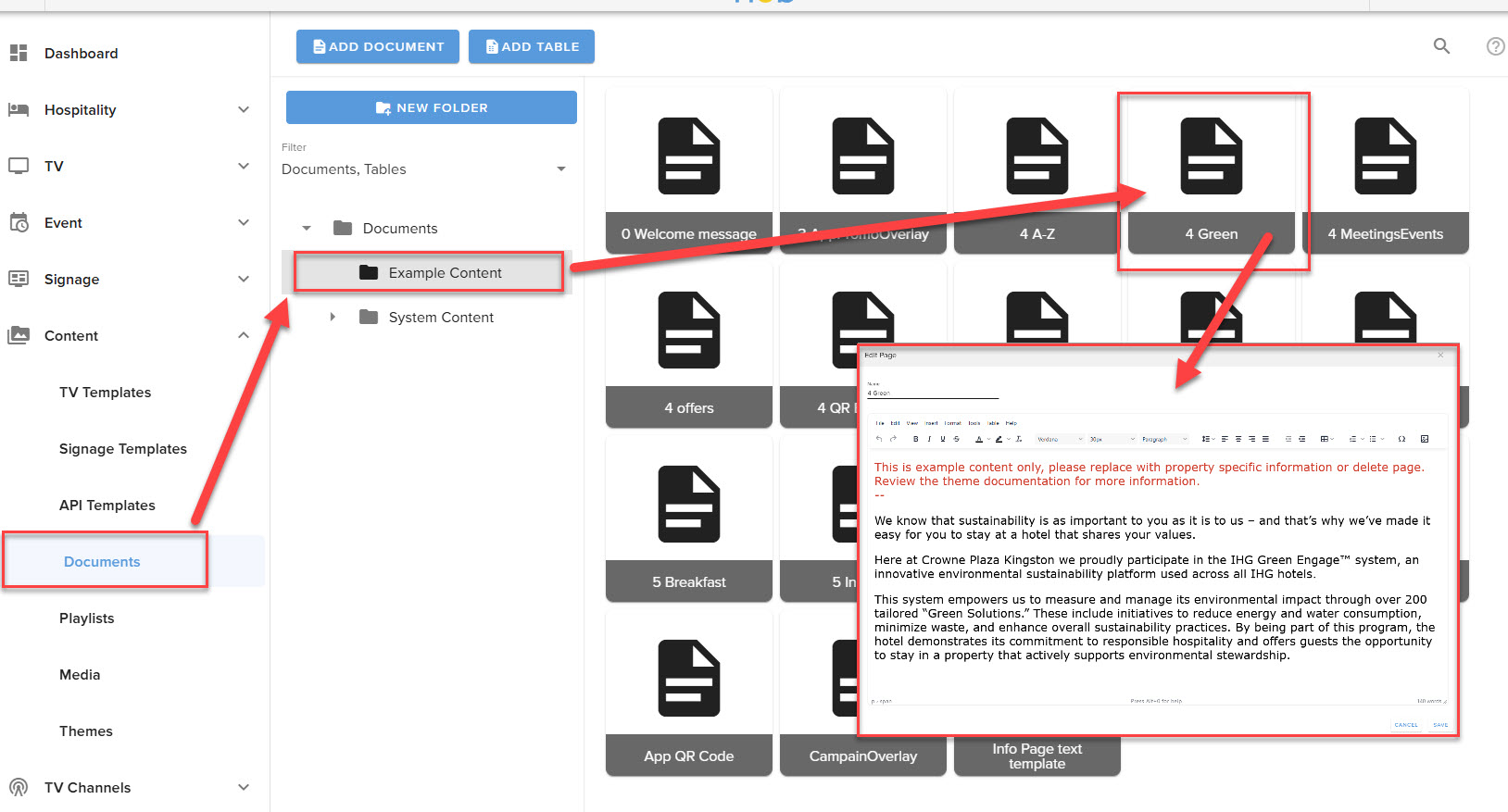
To write new content, create a new document
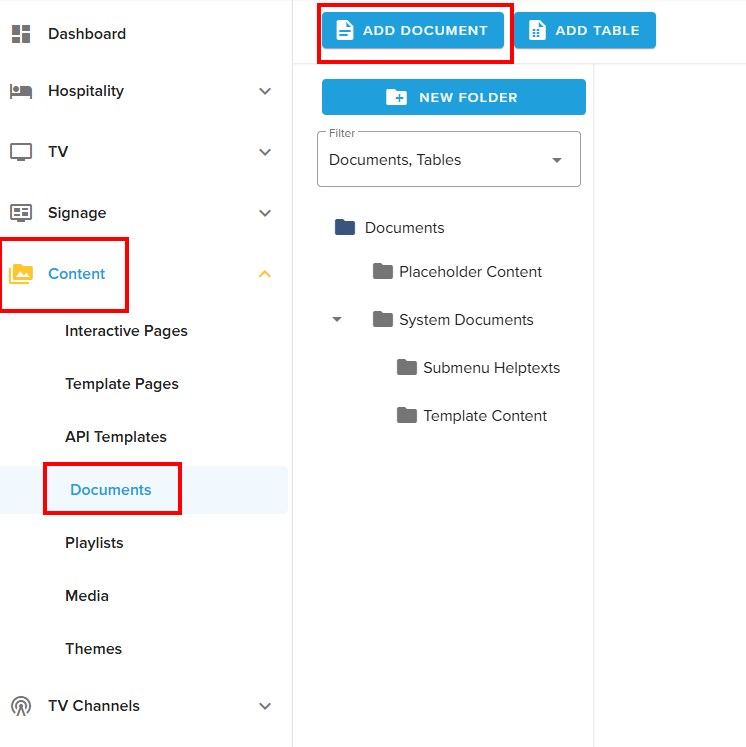
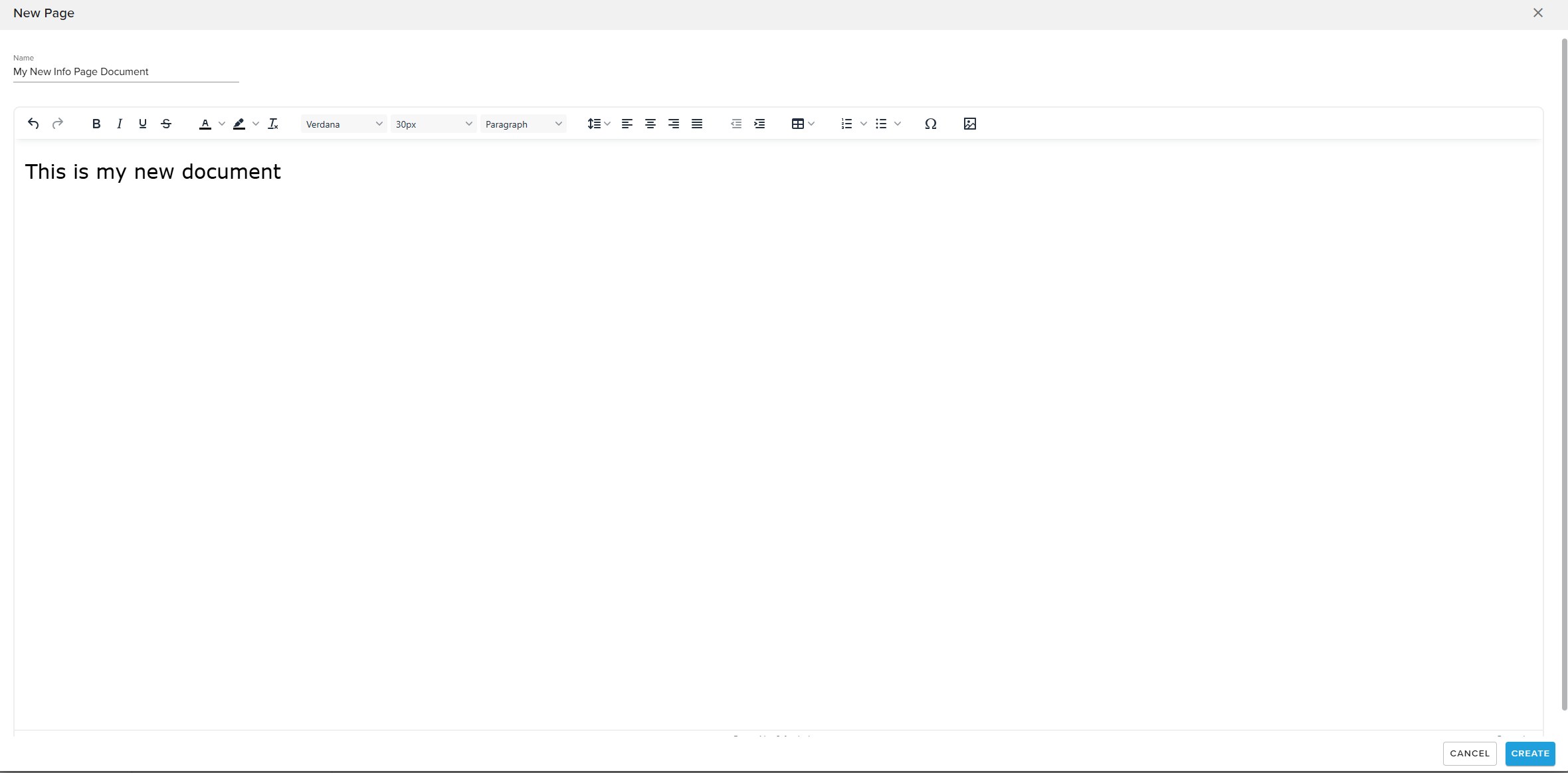
Edit the document per needed. You could copy/paste text from another document as a start for your new document if you want.
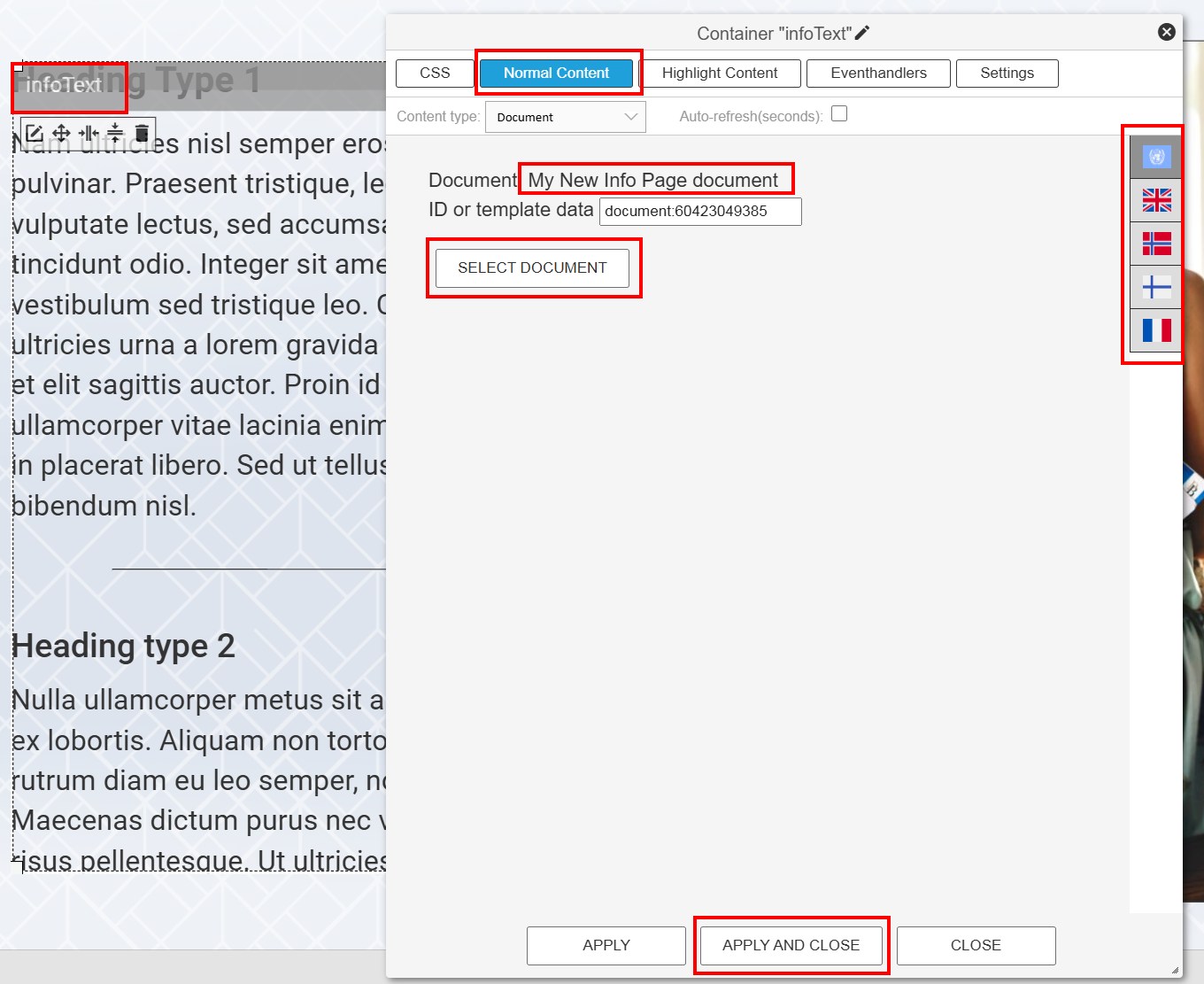
To add the content of the new document into the info page, you double-click the "infoText" window on the info page.
Under "Normal Content", select the new document you have created. Use the flags to add documents on other languages. Then press "Apply and Close".
You should now see the content of the new document on the info page. Remember to save the page.
¶ Create a new info page
To add a new info page, create a copy of one of the existing ones:
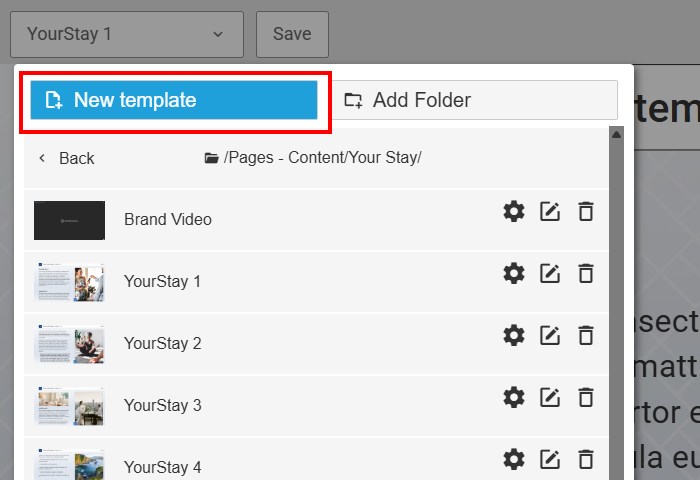
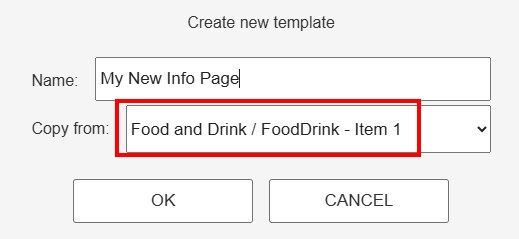
Now follow the instructions in the section "Customize an existing Info Page" above to do the needed modifications.
¶ System Services
A selection of live services are included in the theme, you can remove any services not desired by the property. Some require a correctly configured PMS connection.
They are all found under "Guest Services", below is a quick walkthrough of how to work with each. For more information, please consult the more general documentation on working with Hub Themes.
¶ Configure the Wake-Up service
To configure the wake-up service for each hotel, open the "Wake Up Alarm Page 1" page and then the "Overall page settings":
In the eventhandler for "Every time the page is displayed, set the correct media source to play in the background on the wake-up. The audio settings can also be adjusted there.
Do the same procedure of defining the media channel on "Wake Up Alarm Page 2" (On this page there is no audio config).
Remember to test on-site that the wake-up is working properly.
¶ Adjust the weather locations
¶ Weather location on the main menu page
To change the location of the weather widget on the main menu page, open the API template "Main Menu Weather Widget".
Inside the "Fixed paramaters", the latitude and longitude of the location can be set. You can also toggle between Celsius and Fahrenheit.
¶ Weather locations within the Quick Services submenu
To add or remove locations to the weather list, open the "Weather" data source within the "QuickService Details" folder. Configure the name/latitude/longitude for each location:
¶ Configure the News feed
You can configure the News feeds showing in the News menu:
The News sources are configured in the data source called "News Sources" within the "QuickService Details" folder. Here you can add sources to the list by using the "Add" button. You can delete items by using the recycle bin button. You can also change the order of the items using the arrow buttons. Add title, url and limit=15 for each item, as shown below:
¶ Configure Flight locations
The Hyatt theme has a flight template included. However, please note that an extra license is required to enable this service. Please contact your sales representative for purchasing this license.
¶ Enable the flight pages
The Flight pages are disabled by default, since using these require an extra license, see above. If you have a valid license, you can enable the pages by entering the "Quick Services" data source. In the "Flight" item, set the "action" paramater to "Open Page" and set it to open the Menu Page "Flights List":
¶ Change the list of locations
The list of locations is configured from the data source called "Flights" within the "QuickService Details" folder. Here you modify the items to contain the name(s) and the IATA code(s) you want to include:
¶ Set up Web Radio categories
The Hyatt theme includes a web radio service with a few default categories. The default categories can be modified or deleted, and new categories can be added.
¶ Define a new web radio category
The various web radio categories are defined in different data sources. See as an example the "Classic Rock" data source below:
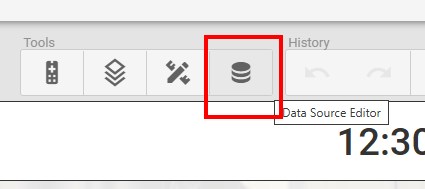
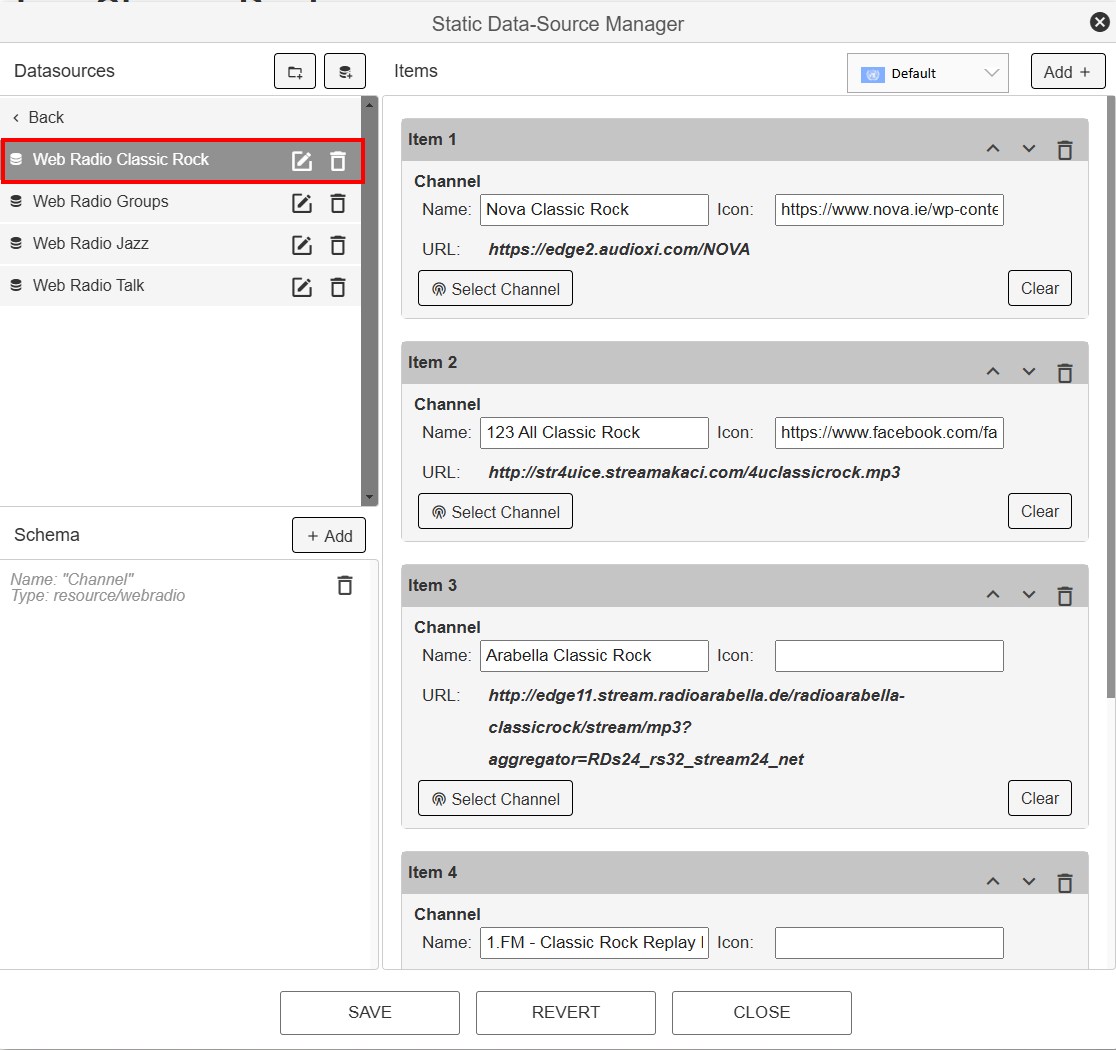
To define a new category, you could either edit an existing one or create a new. This exampel will show how to create a new.
Start by creating a new data source as a copy of one of the existing ones, for example the "Classic Rock" data source:
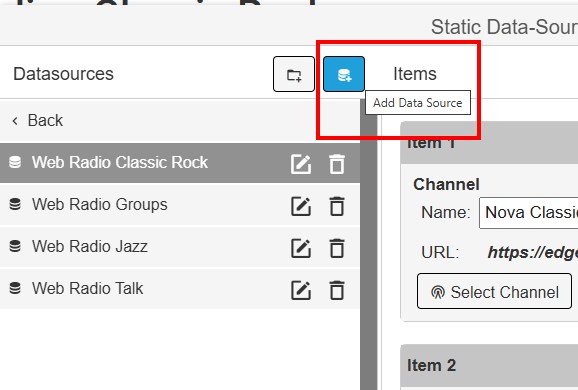
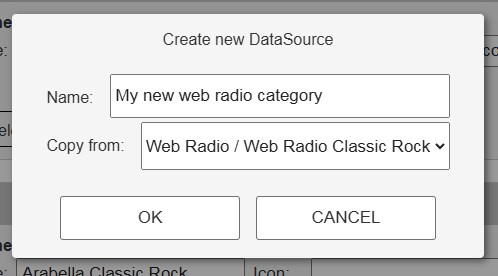
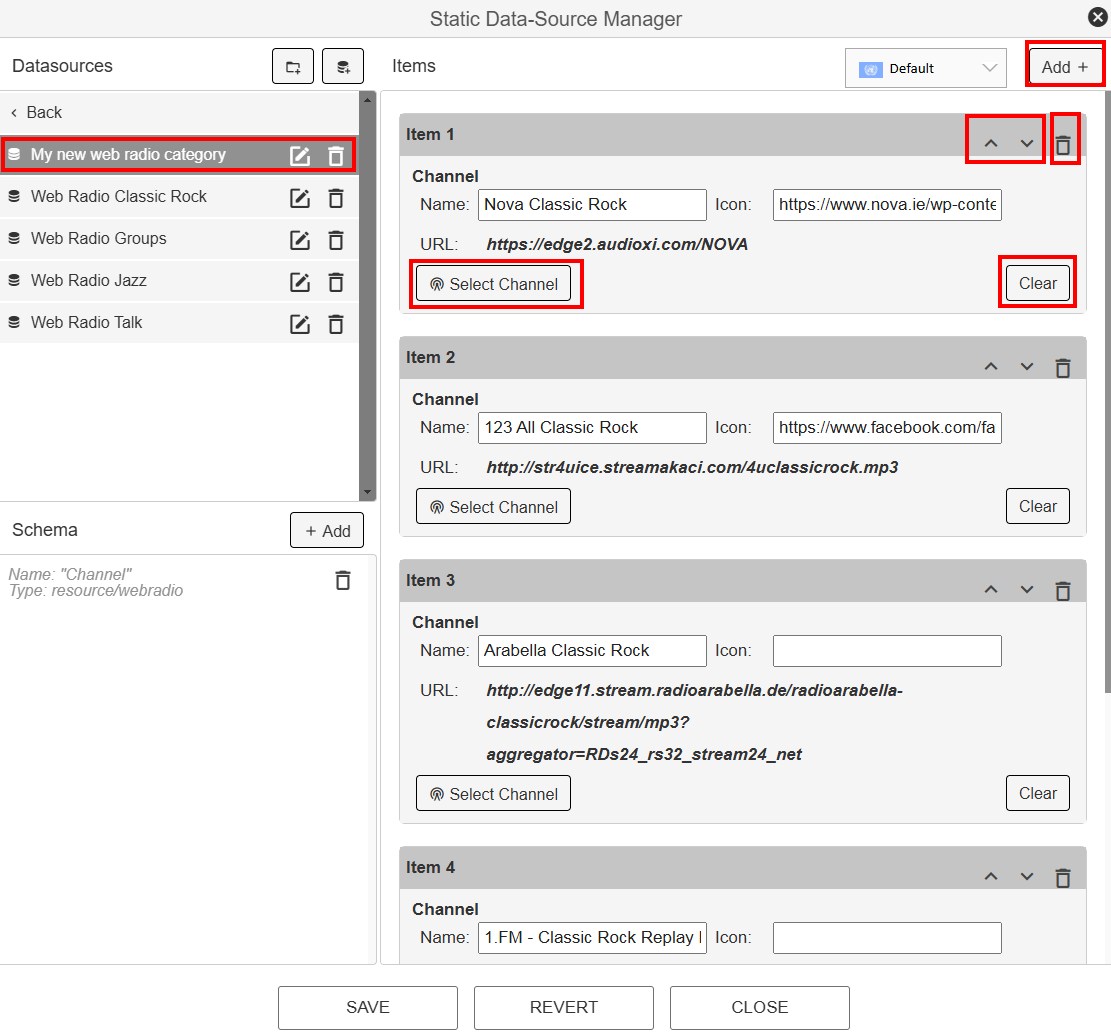
Now you can define the configuration of the new data source:
- Add new items with the "Add" button
- Delete items with the "Recycle bin" button
- Adjust the order of the items with the "Arrow" buttons
- Select the channel in the item with the "Select Channel" button
- Clear the channel in an item with the "Clear" button
¶ Add a new web radio category to the list of categories
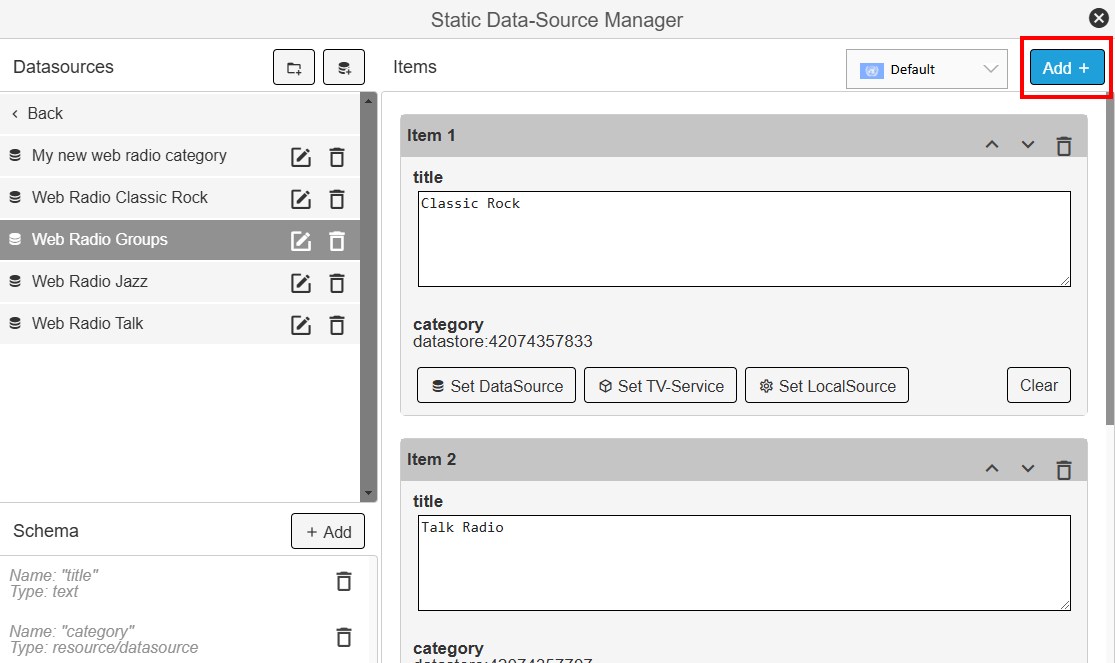
When you have created a new web radio category, you need to add it to the overall list of categories. This is done within the data source called "Web Radio Groups". Use the "Add" button shown below:
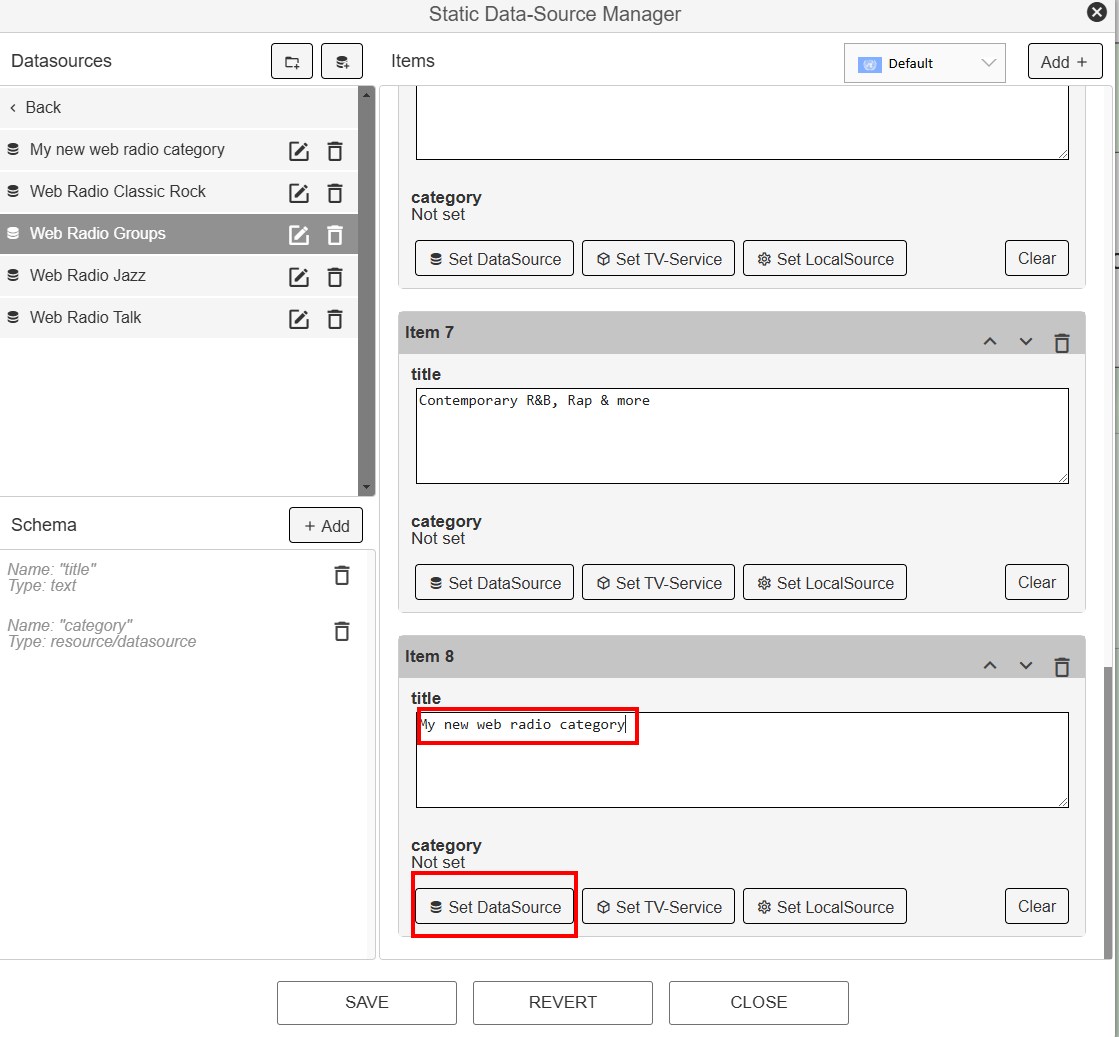
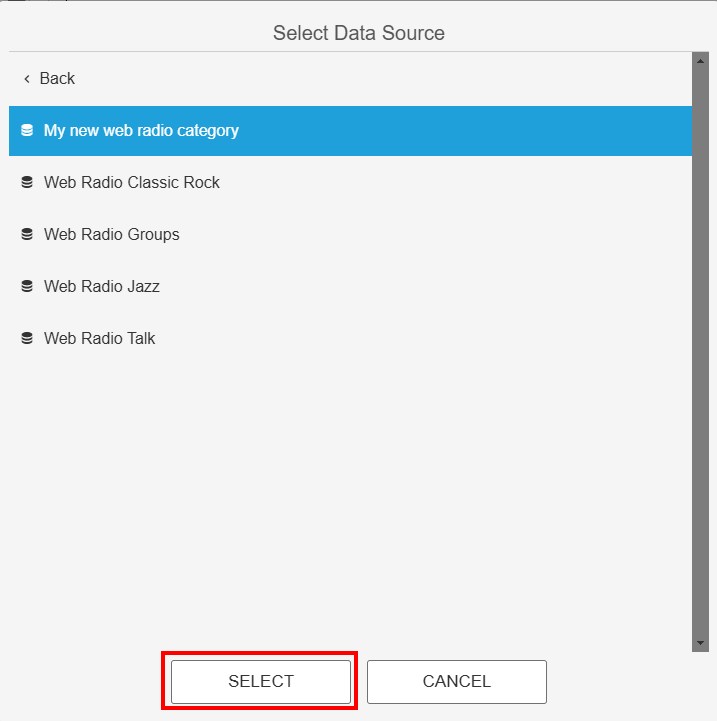
Now you add the title (to be visible on the TV) of the new category. In addition you map up the new data source within the "category" field:
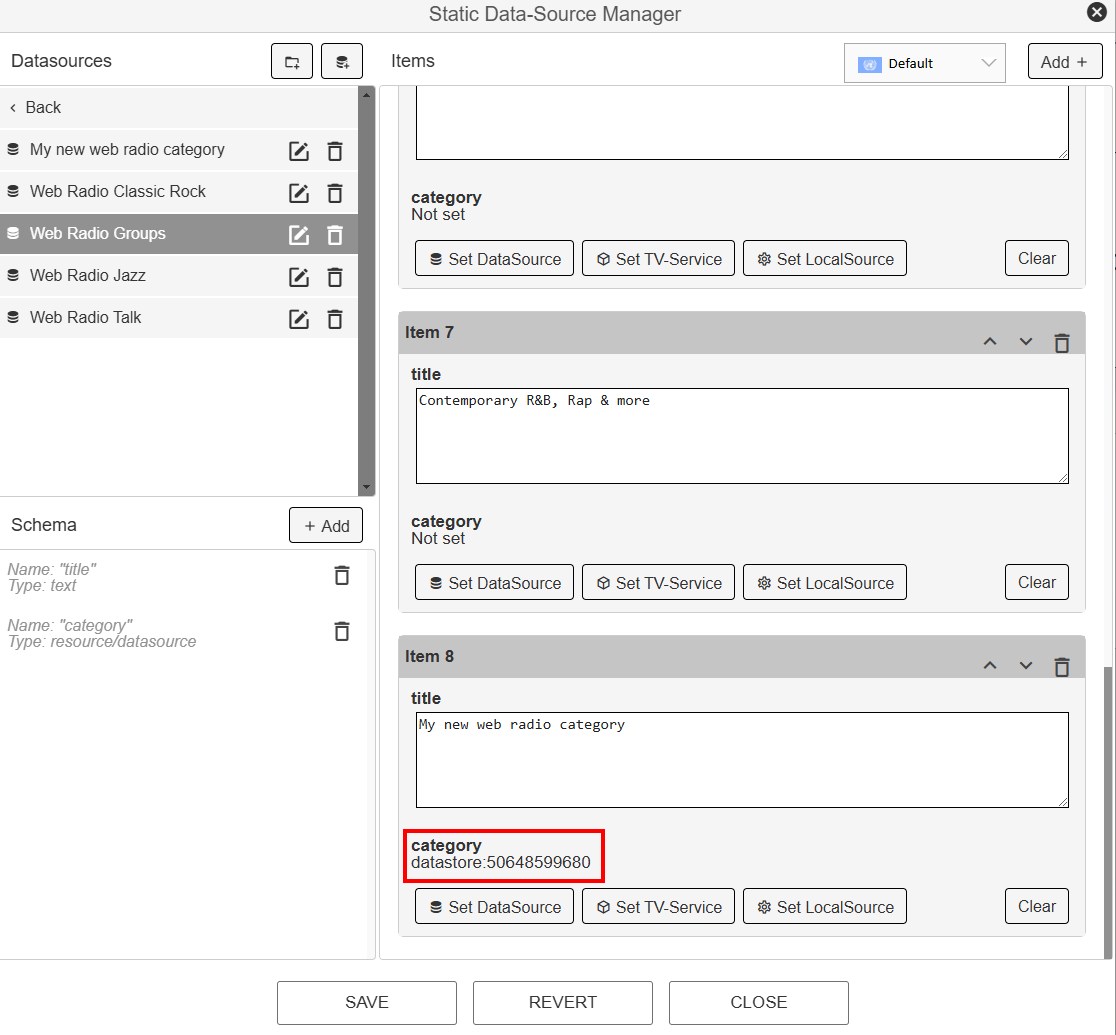
Now, after saving, you can see that the new category is visible in the TV menu: